宣言

免費下載

所有收藏

Typeless 應用程式版本說明

Typeless macOS 應用程式版本說明

開始使用翻譯模式

Getting started with Translation mode

2025年12月4日

macOS app v0.7.0

With Translation mode, simply speak naturally. Typeless translates in real-time into clean, polished text that is natural and native - delivering formatted results ready to send immediately.

Here is the step-by-step guide to get you started.


1. Set your target language

First, tell Typeless which language you want to translate into.

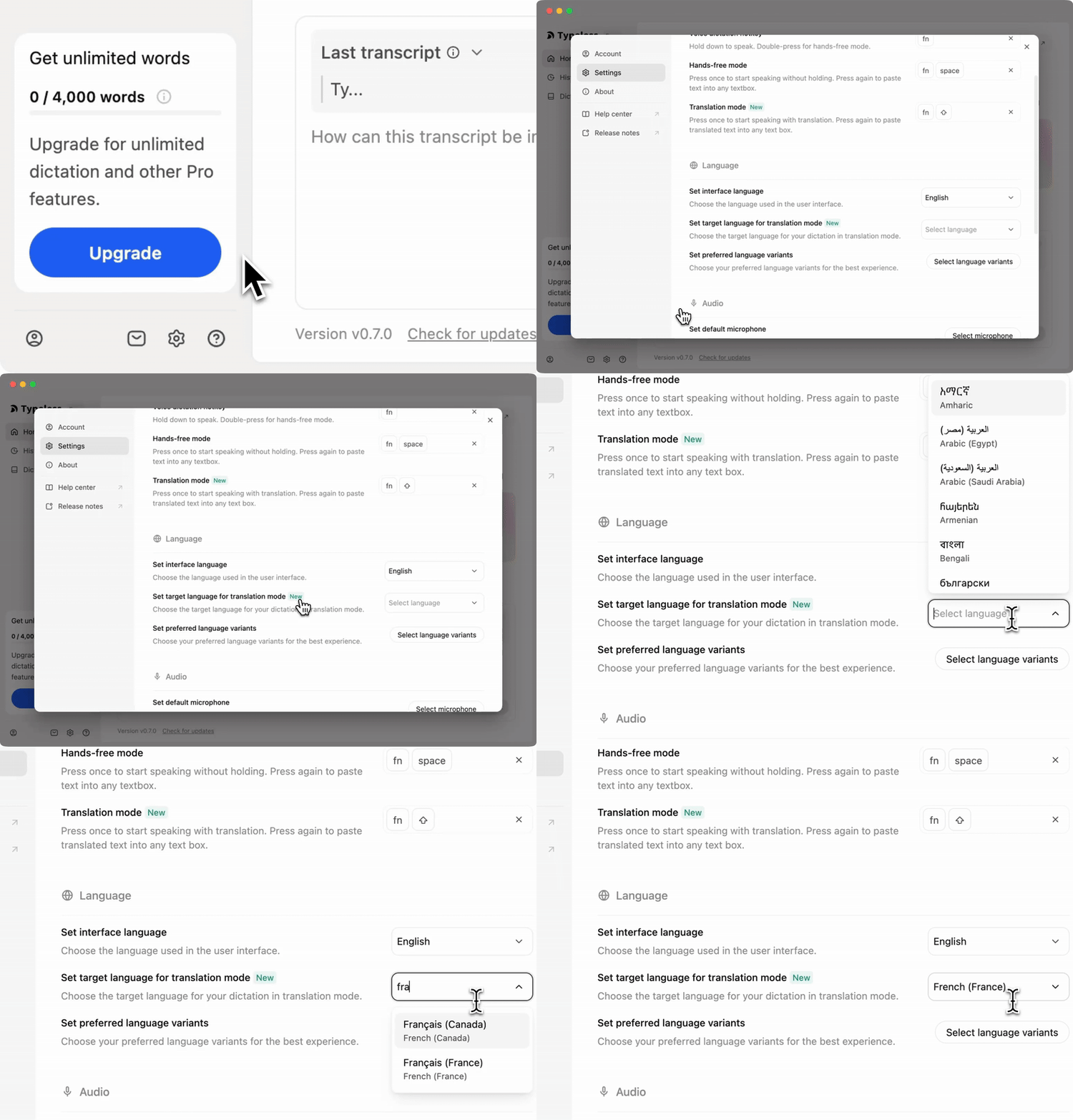
  • Click the Settings icon and navigate to the Language category.
  • Find "Set target language for translation mode" and choose your output language from the list.


2. Speak naturally in your own language

  • Place your cursor in any text box where you want to enter text.
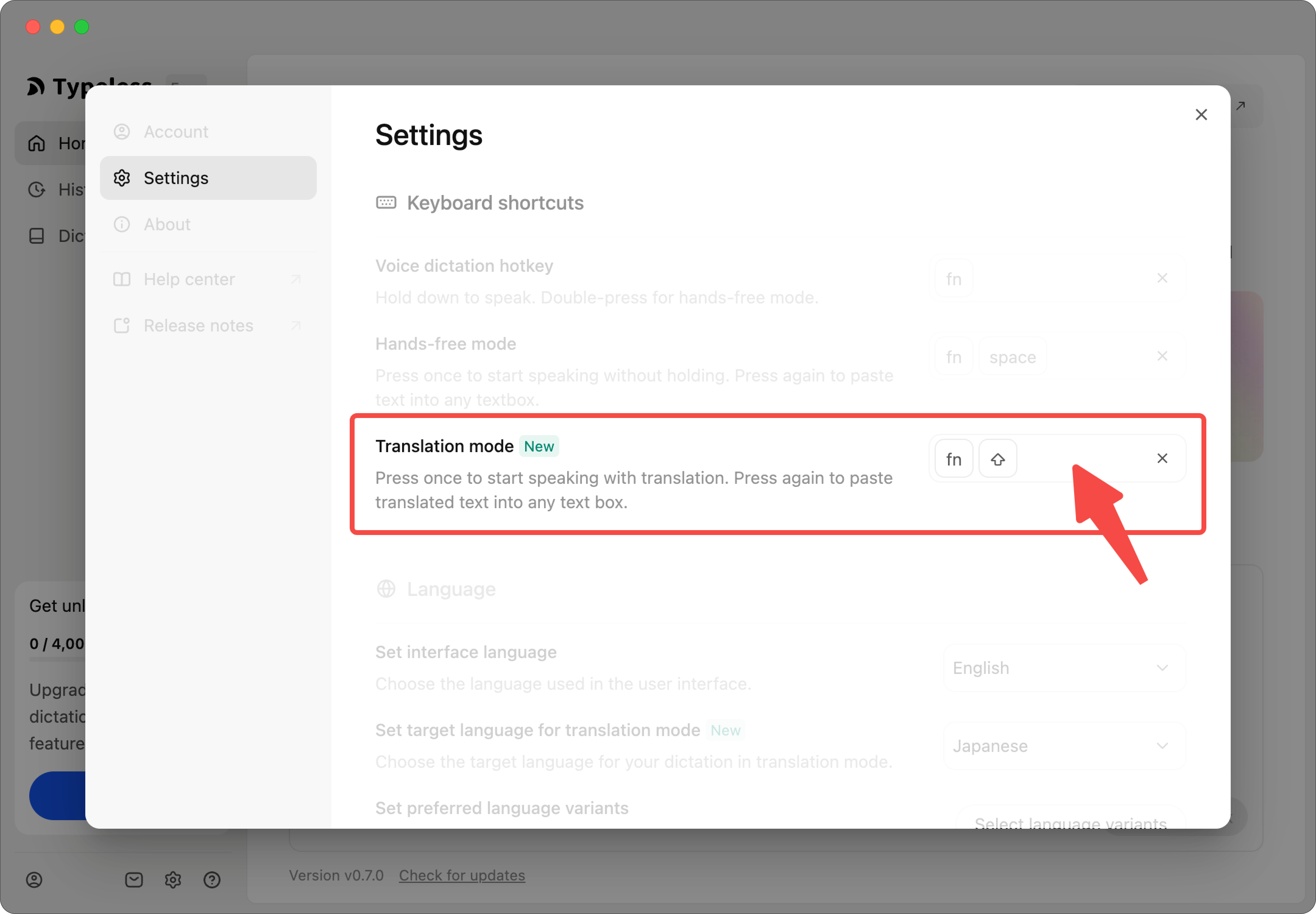
  • Press the Translation shortcut (default is fn + ⇧) and speak.


3. Translate your voice in real-time

  • When you are done, simply press the main Typeless shortcut (default fn) to finish.
  • Typeless will instantly process your words and insert the formatted, native-level translation.

Customize your shortcut (optional)

If the default shortcut doesn't fit your workflow, you can easily change it.

  • Go to Settings > Keyboard shortcuts.
  • Locate "Translation mode".
  • Click the option, then press the new key combination that feels most comfortable for you.