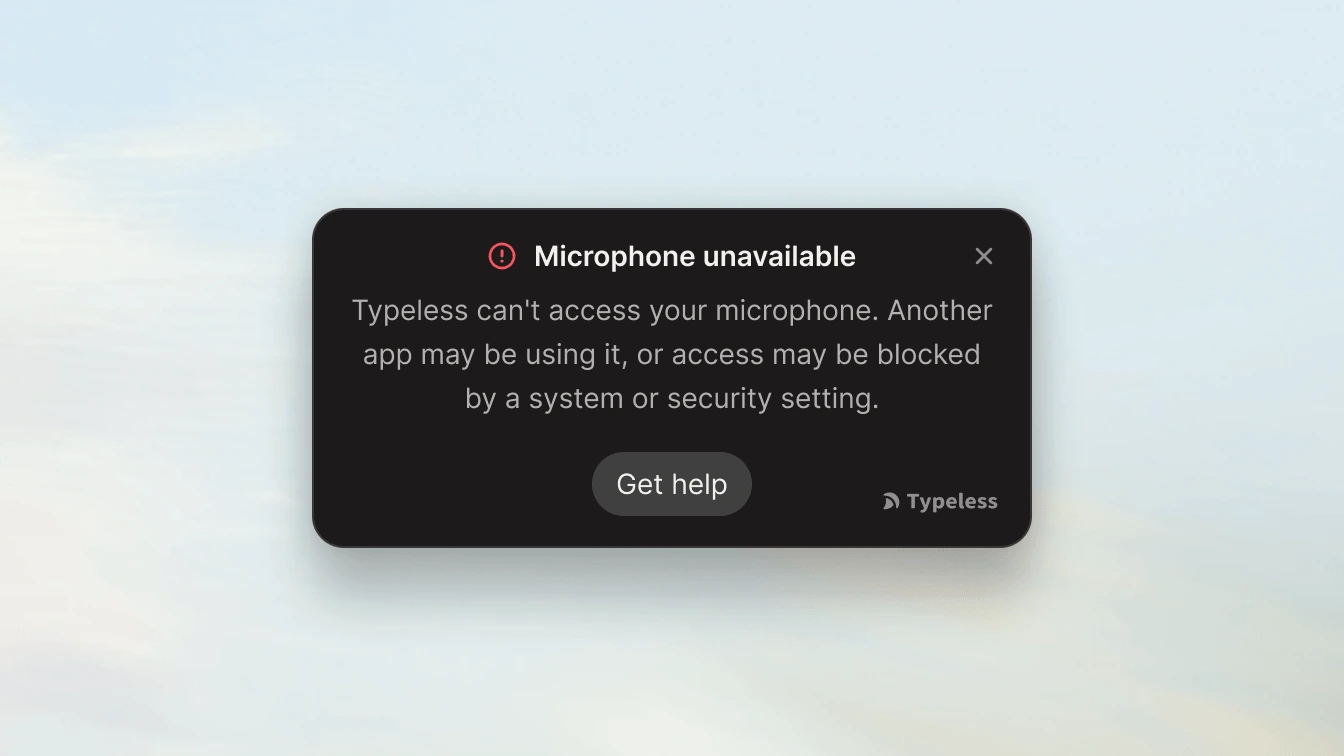
How do I resolve the "Microphone unavailable" error?
If Typeless shows "Microphone unavailable", it means the app cannot access your microphone right now.
This is usually caused by one of these issues:
- Microphone access is blocked in your operating system
- Security or device management settings are blocking access
- Another app is using the microphone
- The selected microphone is unavailable or not working properly
Before you start
First, make sure you are using the latest version of Typeless. Some hardware compatibility issues can be resolved simply by updating the app.
If you are fully updated and still see the error, please follow the troubleshooting steps for your operating system below:
Troubleshooting on Windows
Check Windows microphone permissions
Make sure Windows allows apps to use your microphone.
Windows 11
- Open Settings
- Go to Privacy & security → Microphone
- Turn on:
- Microphone access
- Let apps access your microphone
- Let desktop apps access your microphone (Scroll down to the bottom to find this)
Windows 10
- Open Settings
- Go to Privacy → Microphone
- Turn on:
- Allow access to the microphone on this device
- Allow apps to access your microphone
- Allow desktop apps to access your microphone
After updating the setting, reopen Typeless and try again.
Check your antivirus, security software, or IT management tools
Some security tools can block microphone access even when Windows settings appear correct.
This is especially common on:
- Work or school computers
- Devices managed by IT
- PCs with privacy utilities or manufacturer tools installed
- Systems using endpoint security or antivirus software
Examples include antivirus software, enterprise device management tools, privacy controls, and manufacturer utilities.
What to do
Open any security or privacy software installed on your computer and look for settings related to:
- Microphone access
- Device permissions
- App permissions
- Privacy protection
- Endpoint protection
Check whether Typeless is being blocked. If possible, allow Typeless to access the microphone, then fully quit and reopen the app.
If this is a work-managed device
Your organization may enforce microphone restrictions through IT policies that you can’t change yourself. If that applies, contact your IT administrator and ask them to confirm whether Typeless is being blocked from accessing the microphone.
Close other apps using the microphone
If another app is already using the microphone, Typeless may not be able to access it. Try closing:
- Meeting apps
- Recording apps
- Browser tabs using voice input
- Audio tools running in the background
Then reopen Typeless and test again.
Turn off exclusive mode in Windows
Windows can allow one app to take exclusive control of the microphone, locking out other apps like Typeless.
To disable exclusive mode
- Right-click the speaker icon in the taskbar
- Select Sound settings
- Scroll down to the Advanced section and click More sound settings
- Go to the Recording tab
- Double-click your microphone
- Select the Advanced tab
- Clear these options:
- Allow applications to take exclusive control of this device
- Give exclusive mode applications priority
- Click Apply, then OK
- Reopen Typeless and test again
Check the microphone selected in Typeless and Windows
Sometimes the microphone is available, but the wrong device is selected.
In Typeless
-
Open Typeless → Settings → Audio → Microphone and select the microphone you want to use.
-
Speak into it. If the microphone is working, you will see a blue indicator bar moving next to it.
In Windows
-
Open Settings → System → Sound and confirm the correct microphone is selected under Input.
-
If you have multiple microphones connected, Windows may be using the wrong one.
Check whether the microphone is disabled in Windows
Your microphone may be connected but disabled at the system level.
To check
- Open Settings → System → Sound
- Open More sound settings
- Go to the Recording tab
If your microphone appears but is disabled:
- Right-click it
- Select Enable
If you do not see your microphone:
- Right-click anywhere in the device list
- Turn on Show Disabled Devices
- If the microphone appears, right-click it and select Enable
Then reopen Typeless and test again.
Check hardware connections and restart your computer
If the issue continues, check the hardware itself.
What to do
- If you are using a USB microphone, plug it directly into the computer instead of a hub
- Unplug and reconnect the microphone
- Try a different port if available
- If possible, test another microphone
Then restart your computer. This can reset audio drivers and clear background processes that may be blocking the microphone.
Troubleshooting on macOS
Check macOS microphone permissions
Make sure macOS allows Typeless to use your microphone.
macOS 13 (Ventura) and later
- Open System Settings
- Go to Privacy & Security → Microphone
- Find Typeless in the list and turn the toggle on
macOS 12 (Monterey) and earlier
- Open System Preferences
- Go to Security & Privacy → Privacy tab
- Select Microphone from the left sidebar
- Check the box next to Typeless
After updating the setting, completely quit Typeless (Cmd + Q), reopen the app, and try again.
Check the microphone selected in Typeless and macOS
Sometimes the microphone is available, but the wrong device is selected.
In Typeless
- Open Typeless → Settings → Audio → Microphone and select the microphone you want to use.
- Speak into it. If the microphone is working, you will see a blue indicator bar moving next to it.
In macOS
- Open System Settings → Sound (or System Preferences → Sound)
- Click the Input tab and select the correct microphone.
- Speak into the microphone and check the Input level meter. If it doesn’t move, make sure the Input volume slider is turned up.
Check hardware connections and restart your Mac
If the issue continues, check the hardware itself.
If you are using a USB microphone, plug it directly into the Mac instead of a USB hub or dongle. Unplug and reconnect the microphone, or try a different port.
Then restart your Mac. This clears background processes that may be blocking the microphone.
Still need help?
If the issue persists, please email us at [email protected] and include the following details so we can resolve it faster:
- Your Typeless version and OS version (Windows or macOS).
- Whether this is a personal or work-managed device.
- The type of microphone you are using (built-in, USB, Bluetooth, etc.).
- Whether third-party security software or privacy tools are installed.
- A screenshot of the error message.