Dictate with Typeless bubble while using another keyboard
October 28, 2026
Android app V2.10.0
You can now use Typeless without switching away from your preferred keyboard. Enable Typeless bubble to dictate when replying to a friend, writing an email, or capturing an idea, with your preferred keyboard still open for quick edits or a few extra words.
Set up Typeless bubble
- On Home, tap Enable on the "Speak without switching keyboards" card. After the introduction, tap Continue.
- Follow the prompts in Typeless to grant three permissions so the bubble can work across your apps.
- Show over other apps: Follow the on-screen guide to allow Typeless to show the bubble over other apps.
- Accessibility access: Review the access information and tap Agree. Then follow the on-screen guide to enable accessibility access so the bubble can insert your spoken words into the right text field.
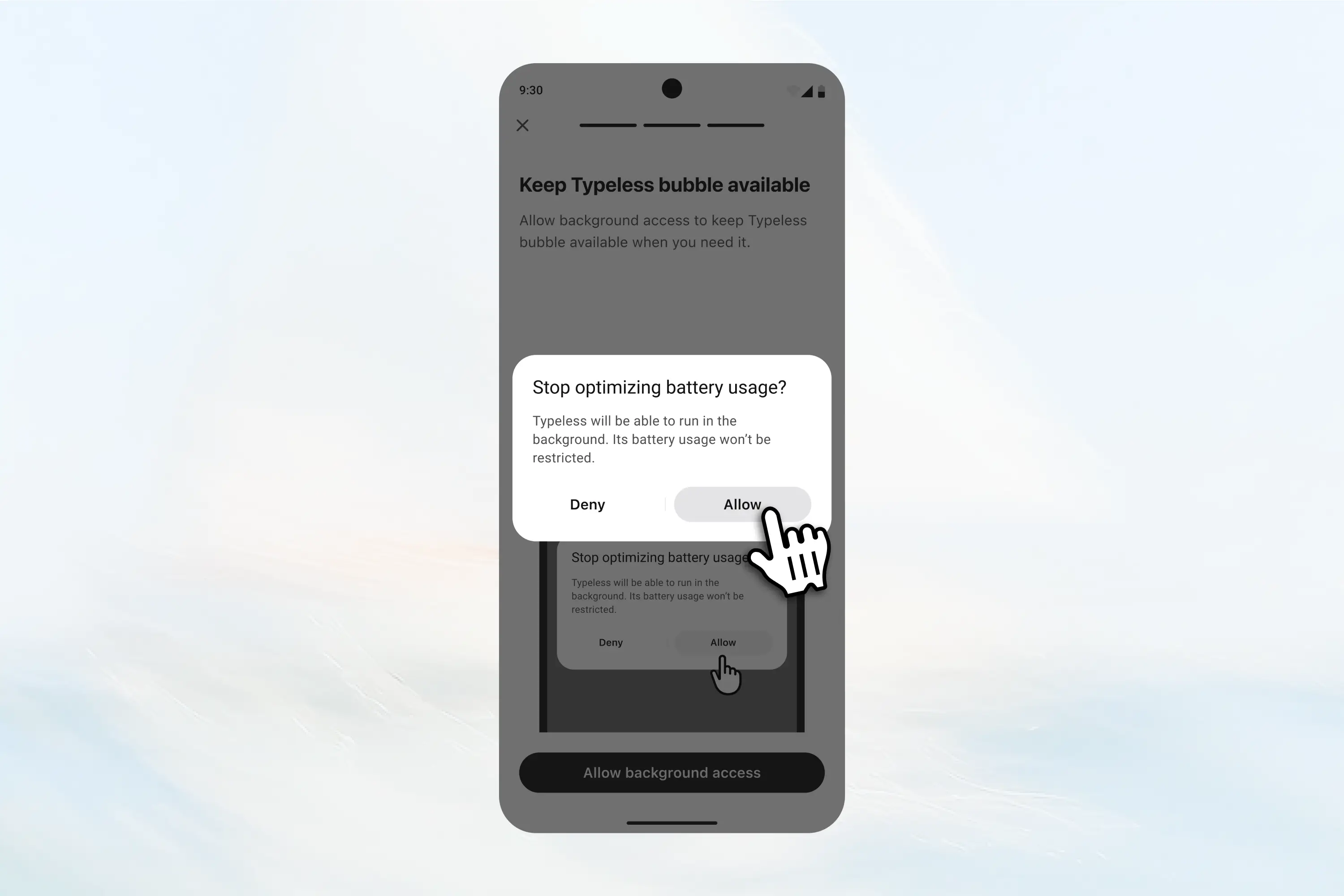
- Background access: Tap Allow when prompted to keep Typeless bubble available when you need it.
- When "Typeless bubble is ready" appears, tap Done to finish setup.
How to use
- Open a text field
- Open the app where you want to write and tap a text field.
- Choose your preferred keyboard other than Typeless, and Typeless bubble will appear.
- Tap to speak
- Tap Typeless bubble once and speak naturally.
- Tap to finish
- Tap the bubble again when you're done.
- Typeless will instantly turn your words into polished writing and insert into the text field.
- You can then use your preferred keyboard to make a quick edit.