Settings
Change keyboard shortcuts, microphone input, and other settings.
To open Settings, click the Settings icon in the bottom-left corner of the Typeless desktop app.
Customize keyboard shortcuts
Change an existing shortcut
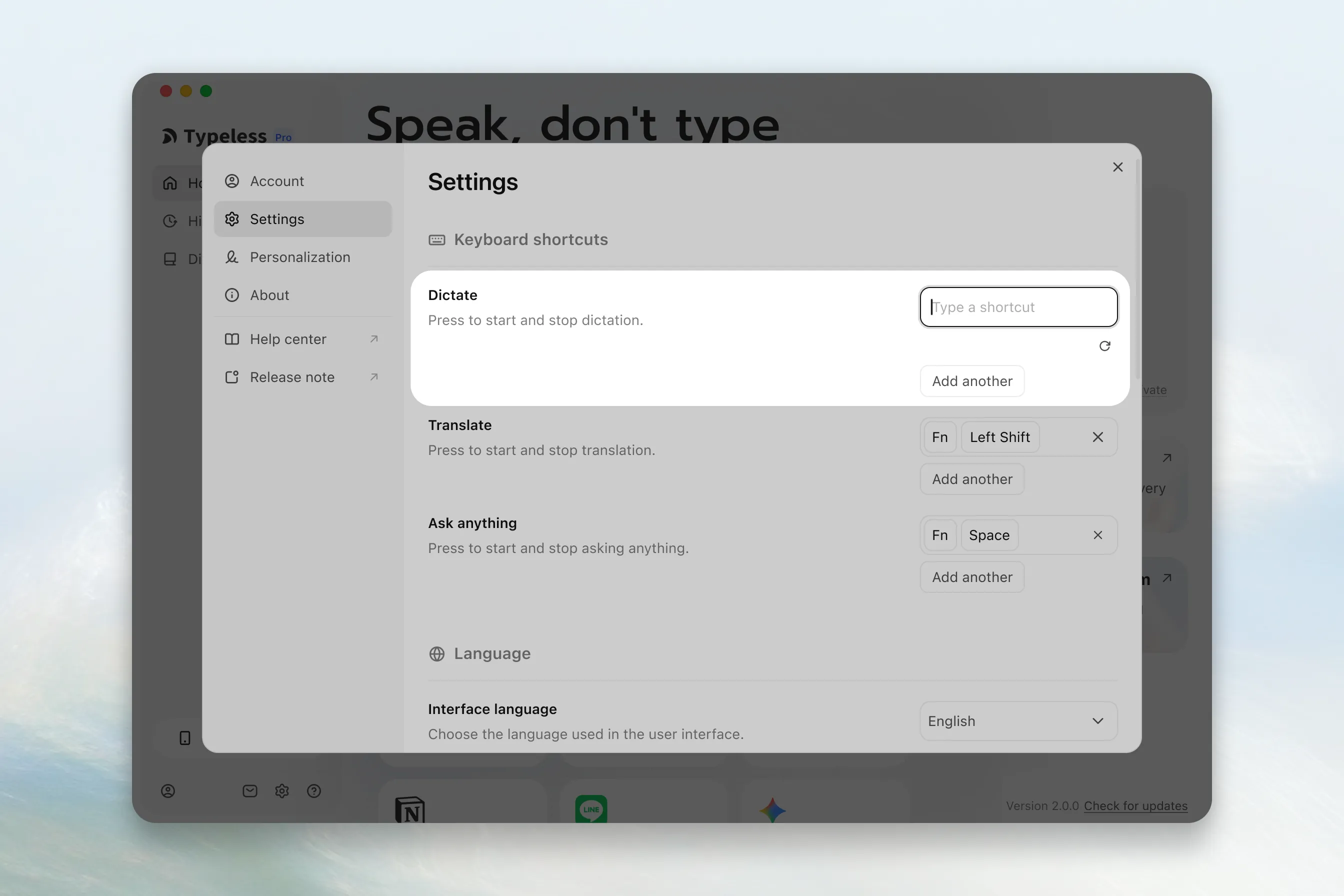
- Under Keyboard shortcuts, click the current keyboard shortcut for Dictate, Translate, or Ask anything.
- Press the key or key combination you want to use.
- Test the new shortcut in a text field.
Add shortcuts for external keyboards
- Under Keyboard shortcuts, click Add another beside Dictate, Translate, or Ask anything.
- On the external keyboard, press the key or key combination you want to use.
- Test the new shortcut in a text field.
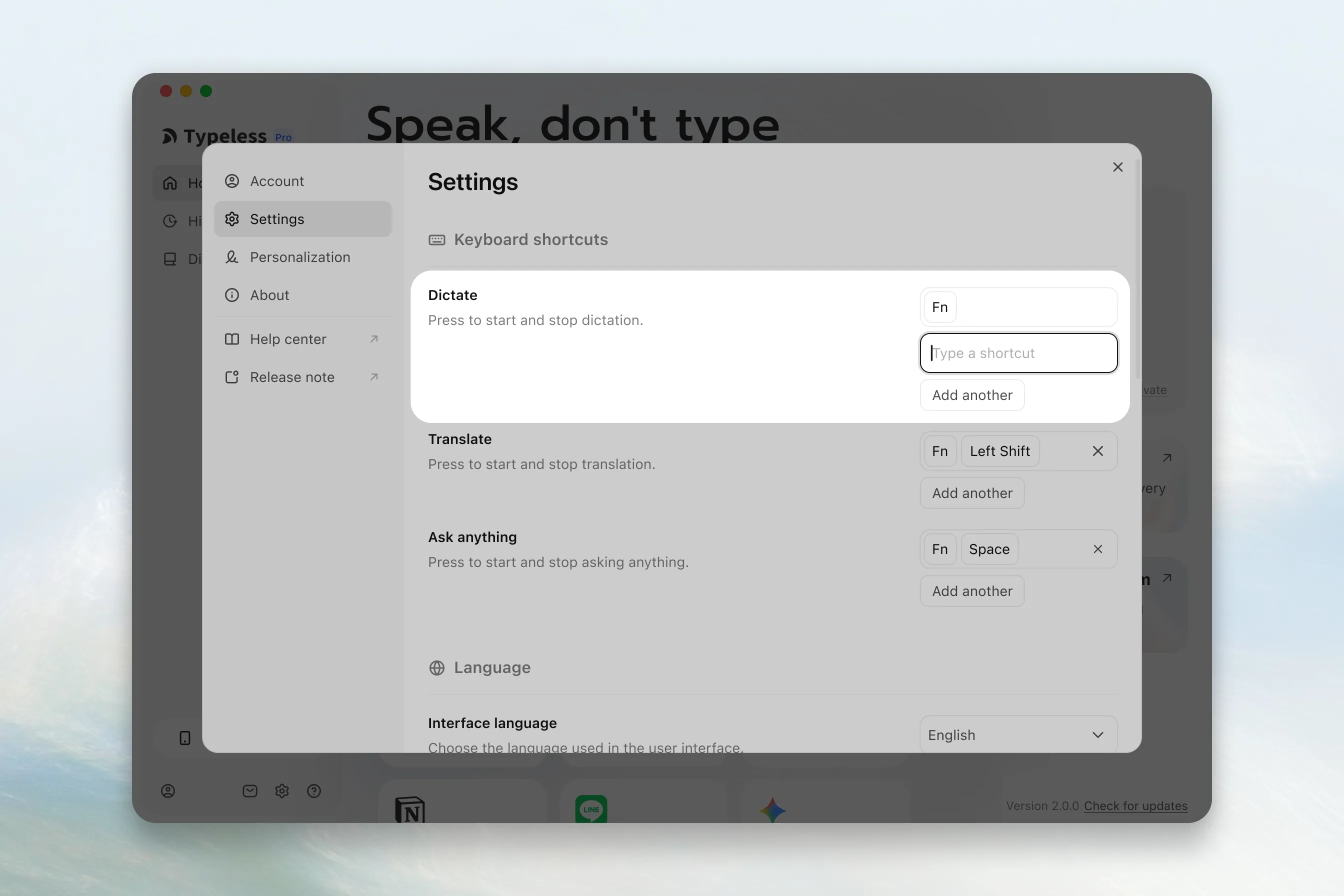
To remove an additional keyboard shortcut, click the Remove icon beside it.
Set your preferred microphone
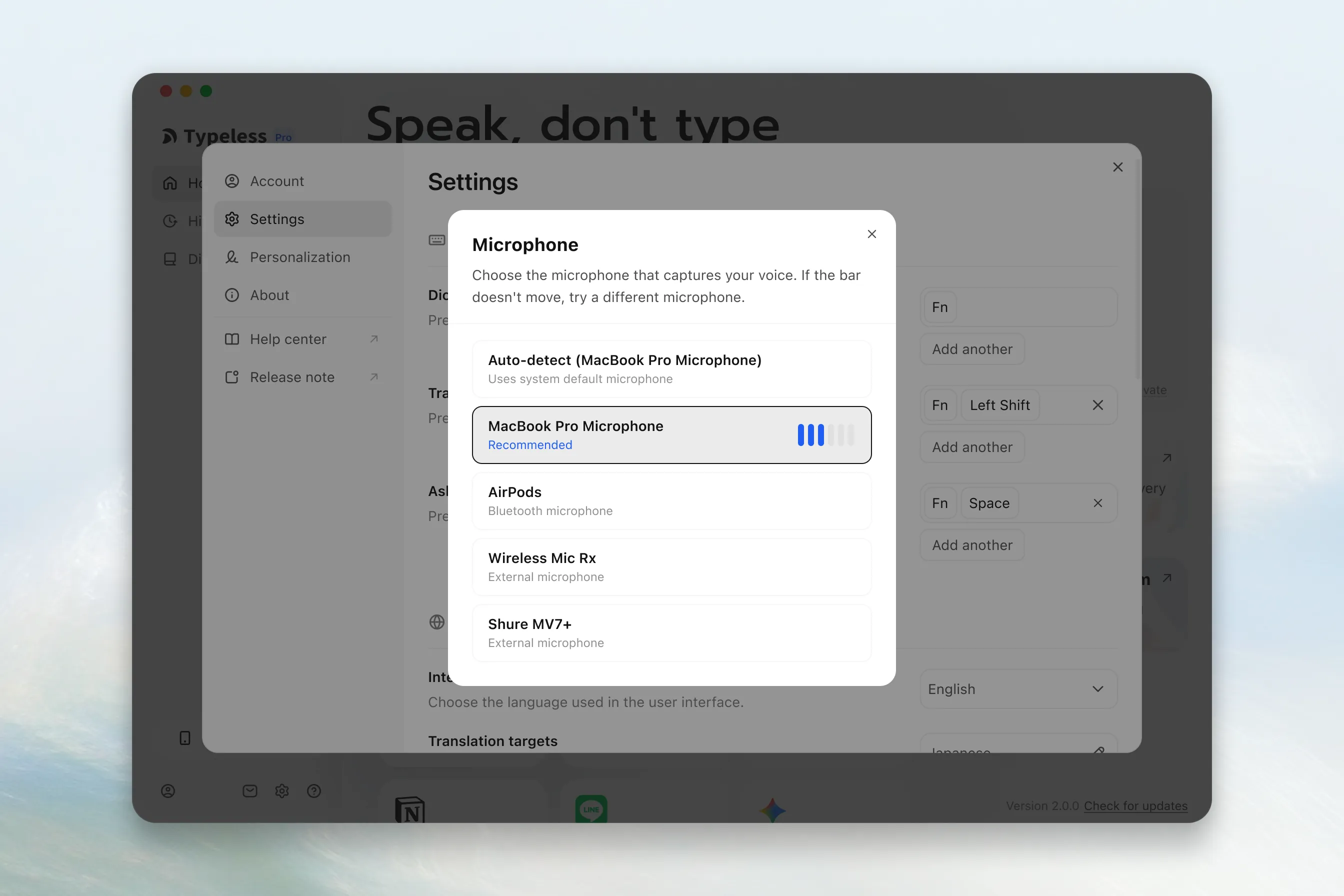
- Under Audio, click the current microphone option next to Microphone.
- Choose an option:
- Choose Auto-detect to use your computer's default microphone.
- Choose a specific microphone to use it in Typeless; connect the microphone to your computer first if it is external or wireless.
- Speak normally to test the microphone. If the volume bars turn blue, that means Typeless can access the microphone.
Set your preferred interface language
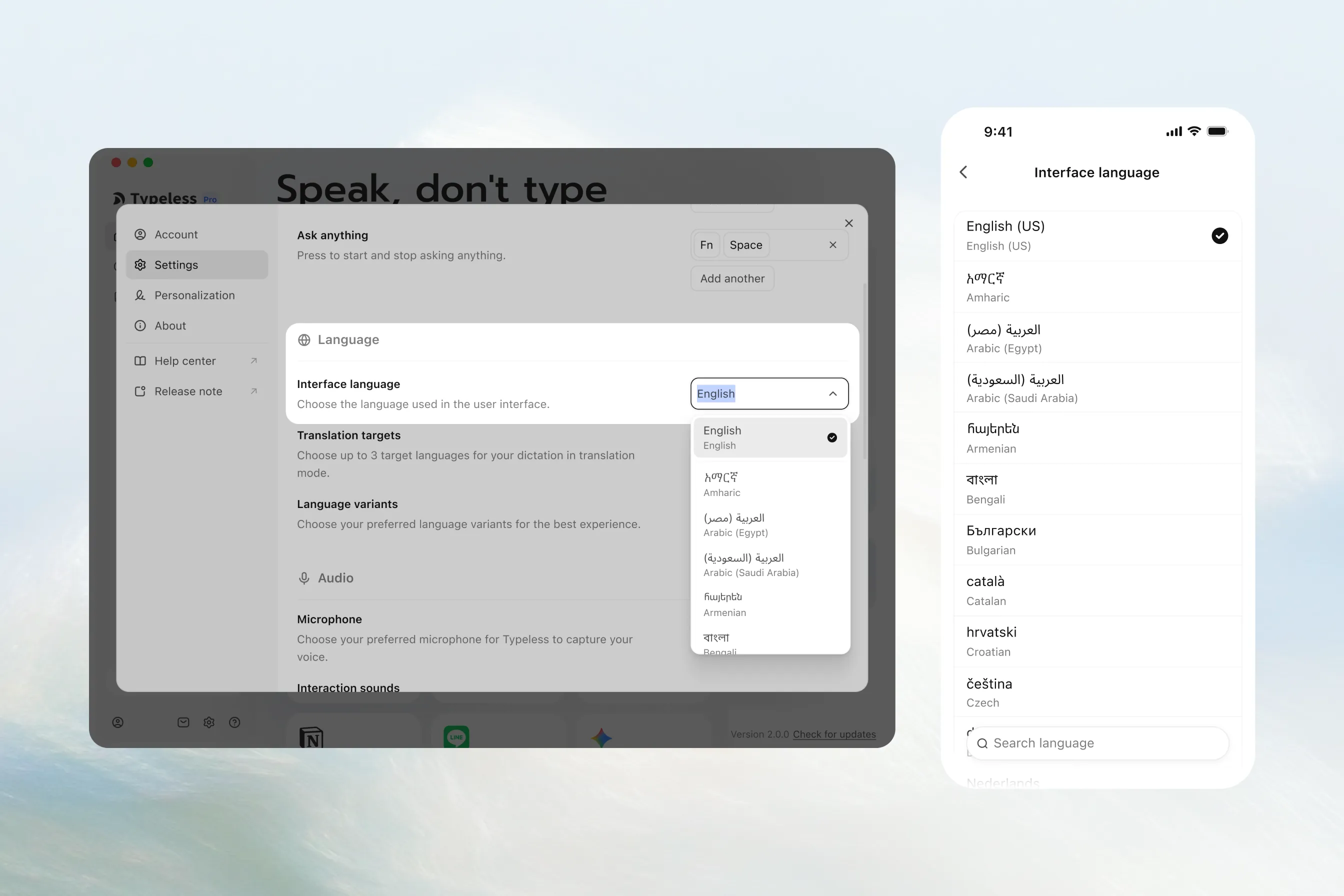
Choose the language in which Typeless is displayed. Typeless is available in 58 interface languages.
- Under Language, click the current language next to Interface language.
- Choose your preferred language from the list.
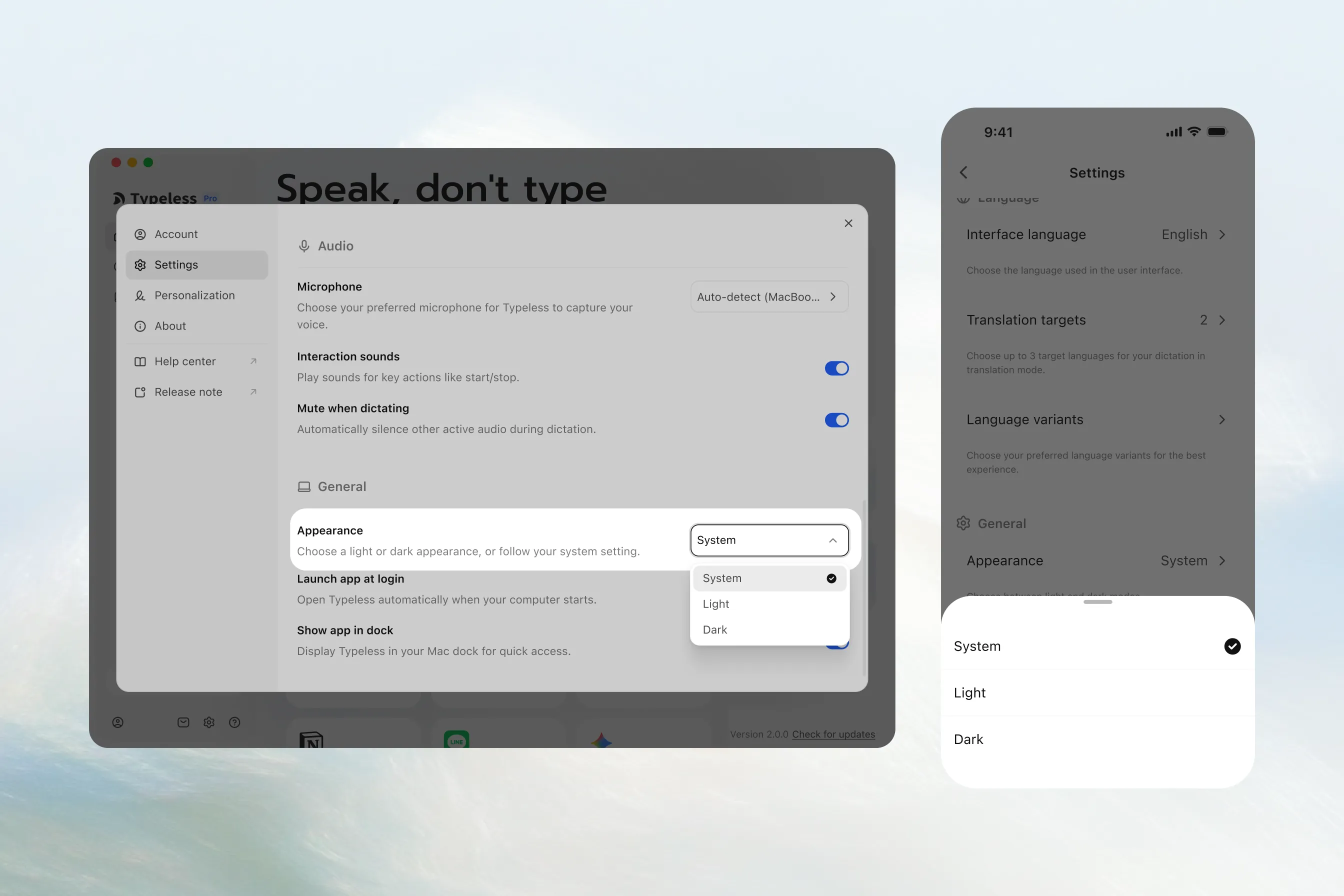
Use a light or dark appearance
Under General, use the menu next to Appearance to choose:
- Use a light appearance: Choose Light.
- Use a dark appearance: Choose Dark.
- Match your computer's appearance: Choose System. Typeless switches between light and dark appearance with your computer.
Audio preferences and app behavior
Under Audio:
- Hear when Typeless starts and stops: Turn Interaction sounds on to hear a sound when you start or finish using Dictate, Translate, or Ask Anything. Turn it off to use these features without the sounds.
- Pause other audio while dictating: Turn Mute when dictating on to dictate without other audio playing. Turn it off to keep other audio playing while you speak.
Under General:
- Open Typeless when your computer starts: Turn Launch app at login on to have Typeless ready after you start your computer and sign in. Turn it off if you prefer to open Typeless yourself.
- Keep Typeless in the Dock for quick access: On macOS, turn Show app in dock on to open or return to Typeless directly from the Dock. Turn it off if you prefer to access Typeless another way.