History & Dictionary
Manage your dictation history and build your vocabulary.
Your History
History lets you review what you have dictated and what you have asked Typeless.
- Open Typeless, then click (on desktop) or tap (on phone) History.
- Find the transcript you want.
- On desktop, click All, Dictations, or Ask anything to narrow the list.
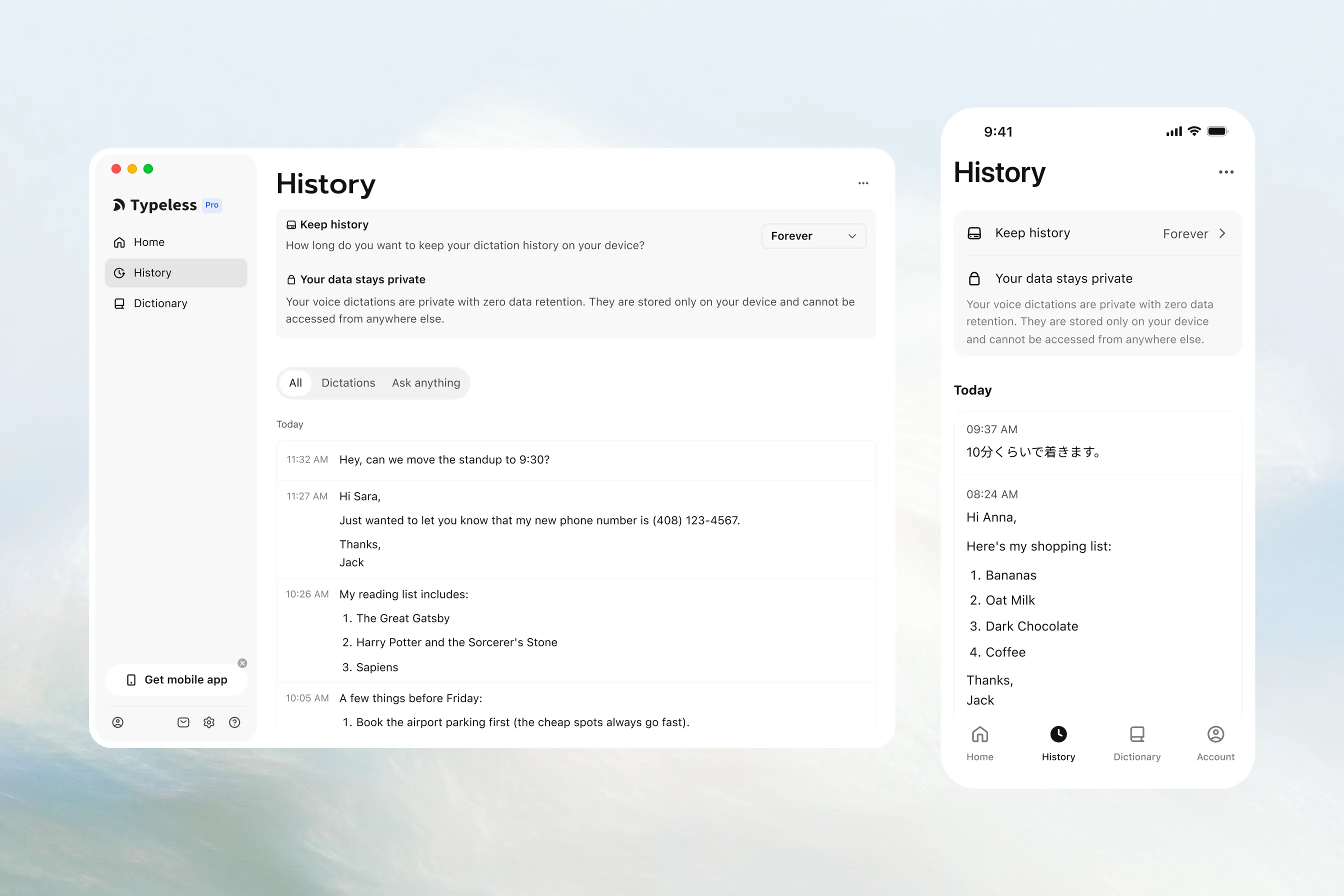
From History, you can:
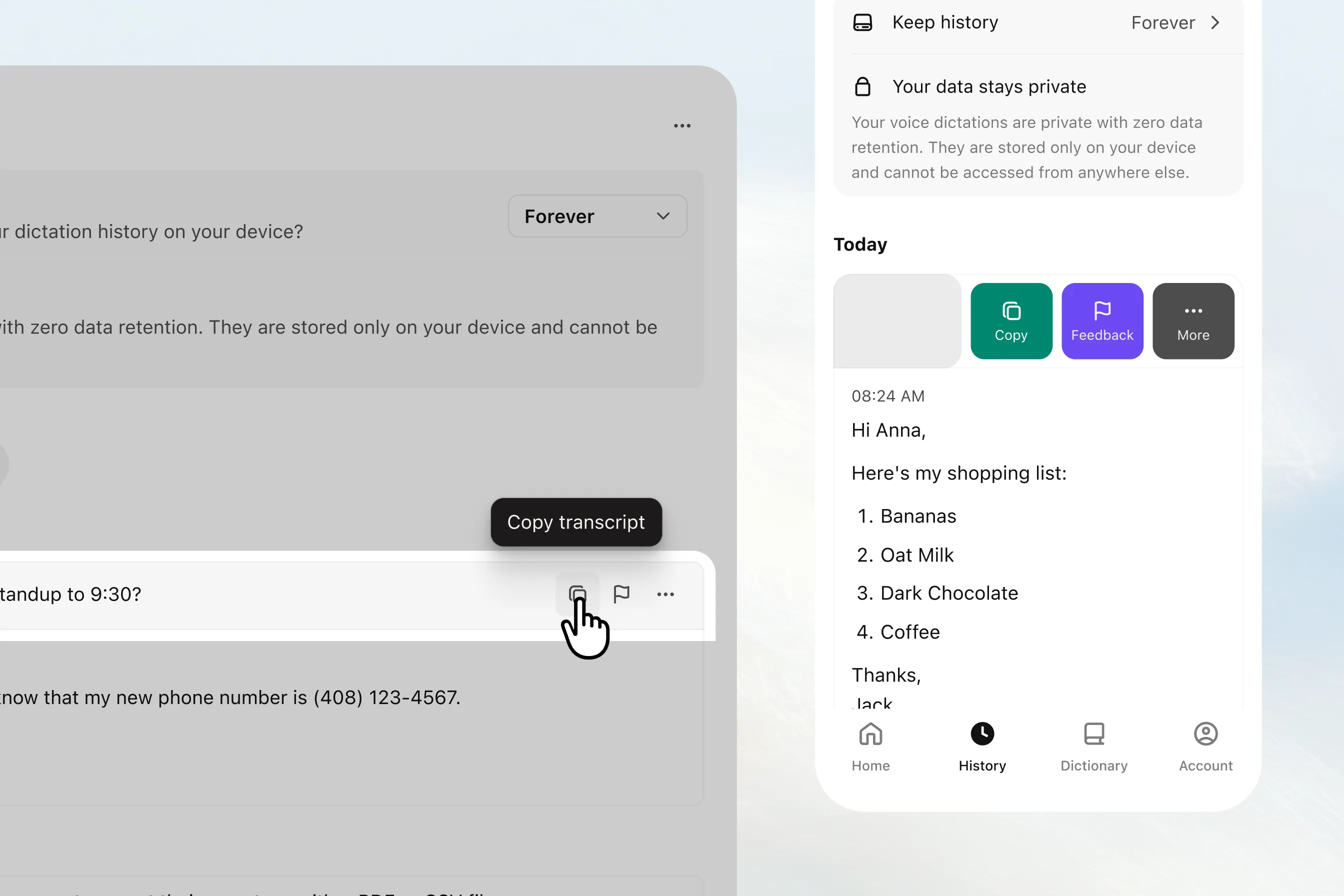
Copy transcript: On desktop, move your cursor to the transcript and click the Copy icon. On mobile, tap the transcript to copy it, or swipe left and tap Copy. You can then paste the transcript into another app.
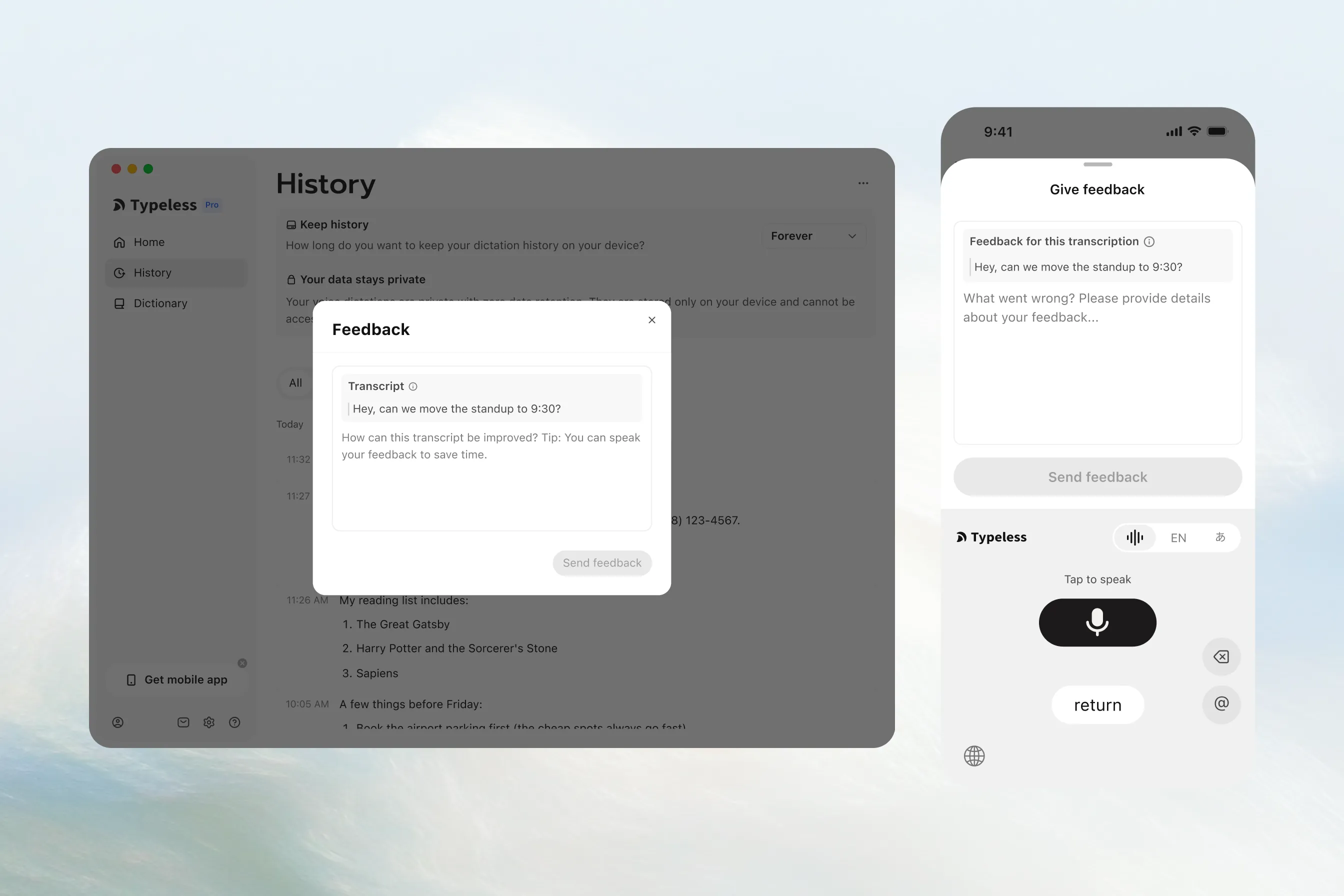
Give feedback: On desktop, move your cursor to the transcript and click the Feedback icon. On mobile, swipe left on the transcript and tap Feedback. Write down how the transcript could be improved, or dictate your feedback. Then click or tap Send feedback.
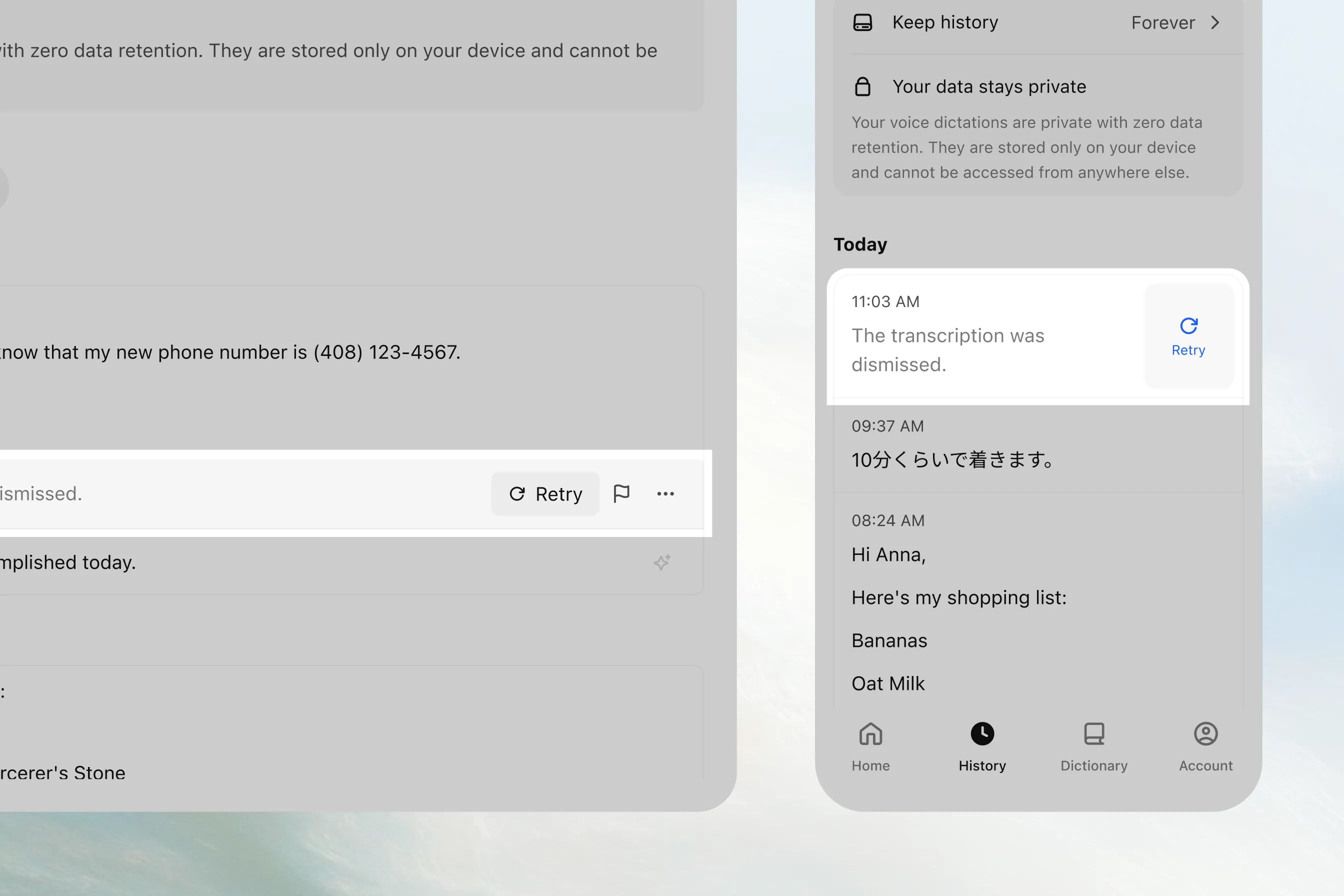
Retry: If what you said didn't go through, click or tap Retry to try again with the same audio.
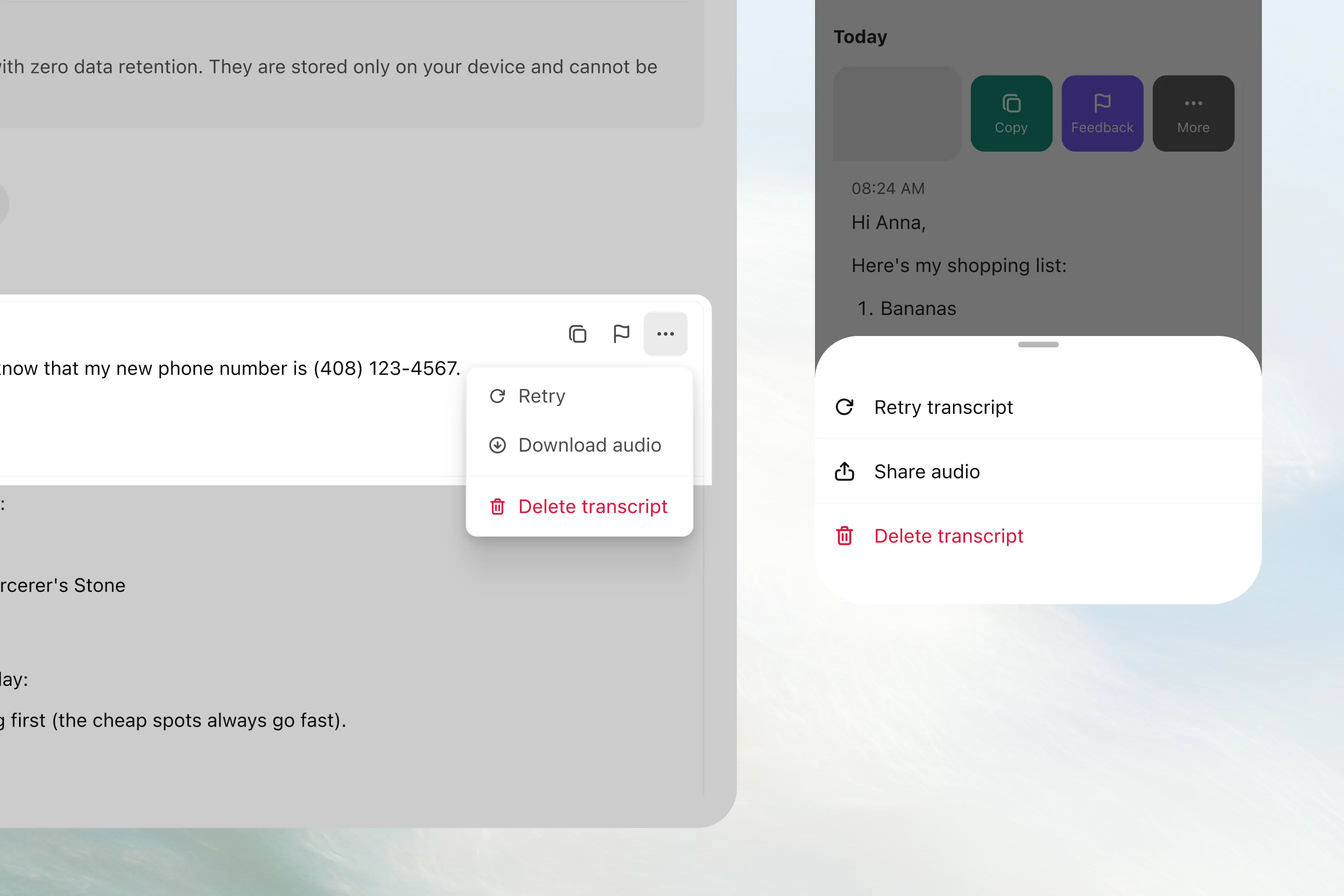
Download audio: On desktop, move your cursor to the transcript and click the More (•••) button and choose Download audio to save the original audio to your device. On mobile, swipe left on the transcript, tap More, then tap Share audio to send the original audio to another app.
Delete a transcript: On desktop, move your cursor to the transcript and click the More (•••) button and choose Delete transcript. On mobile, swipe left on the transcript, tap More, then tap Delete transcript. Confirm the deletion to remove the transcript from History.
Delete all History: Open the More menu in the top-right corner of History and choose Delete all.
Choose how long to keep your History
Your history stays only on your device and cannot be accessed from anywhere else.
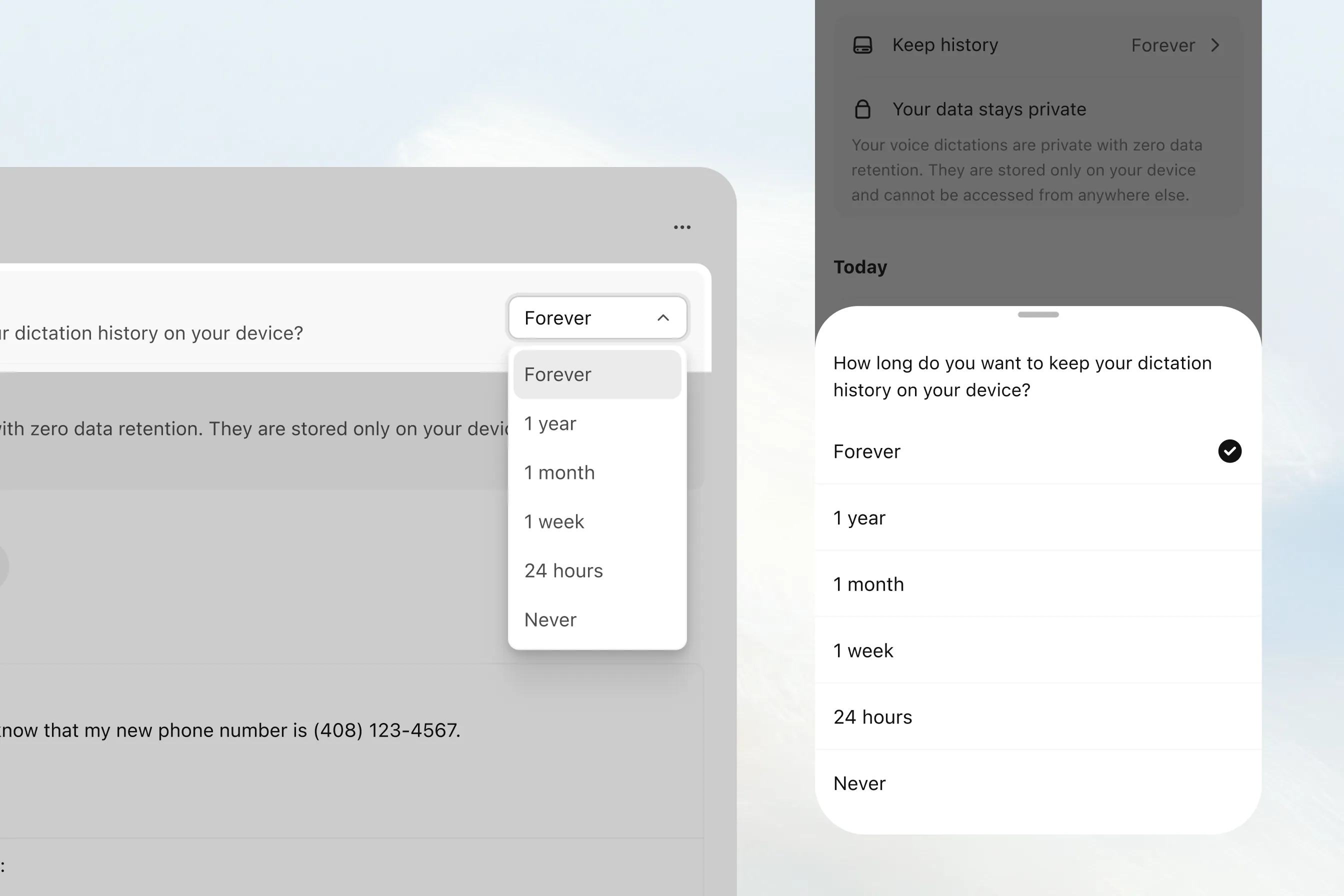
Under Keep history, choose how long you want to keep your history on your device: Forever, 1 year, 1 month, 1 week, 24 hours, or Never. You can revisit transcripts for as long as the option you choose allows.
Your Dictionary
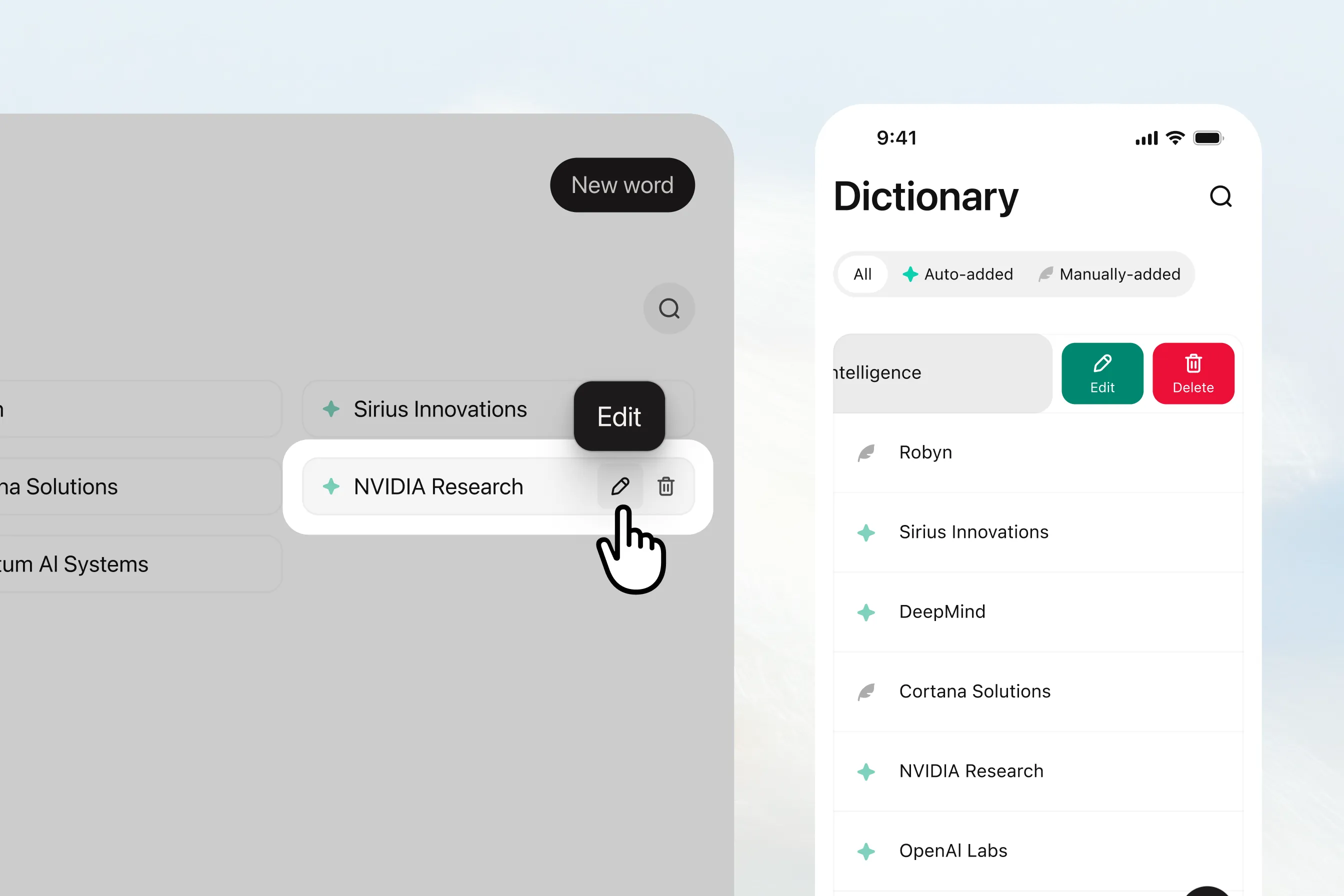
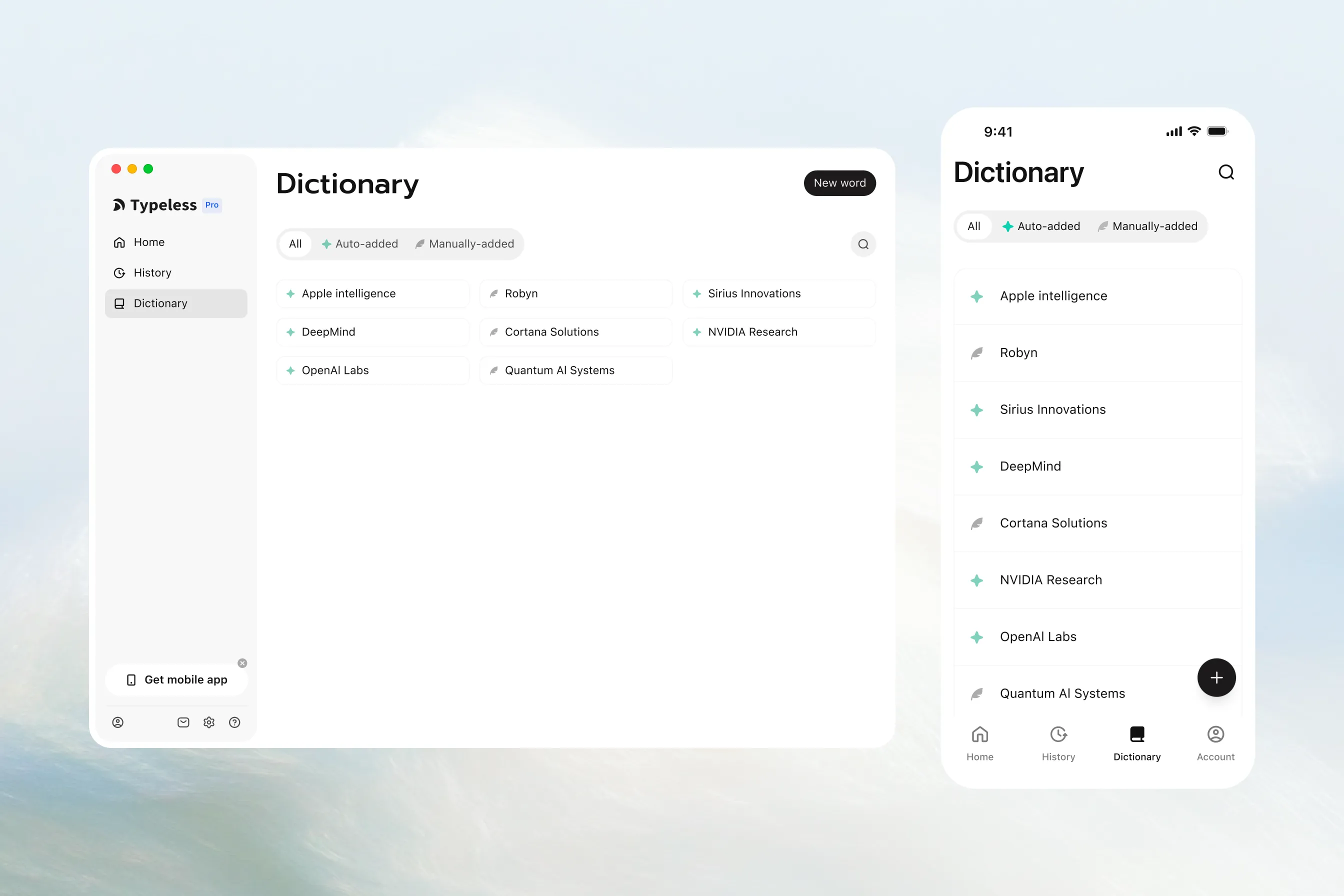
Add people's names, project acronyms, domain terms, and industry terminology to Dictionary so Typeless can recognize them in your dictations.
When you correct a word after dictating, Typeless automatically recognizes your preferred spelling and adds the word under Auto-added. When reviewing or managing your Dictionary, click or tap All, Auto-added, or Manually-added to narrow the list.
Add words to Dictionary
Add one word or phrase
- On desktop, click New word. On mobile, tap the Add icon in the bottom-right corner of Dictionary.
- Enter the word or phrase you want Typeless to recognize.
- Click or tap Add word.
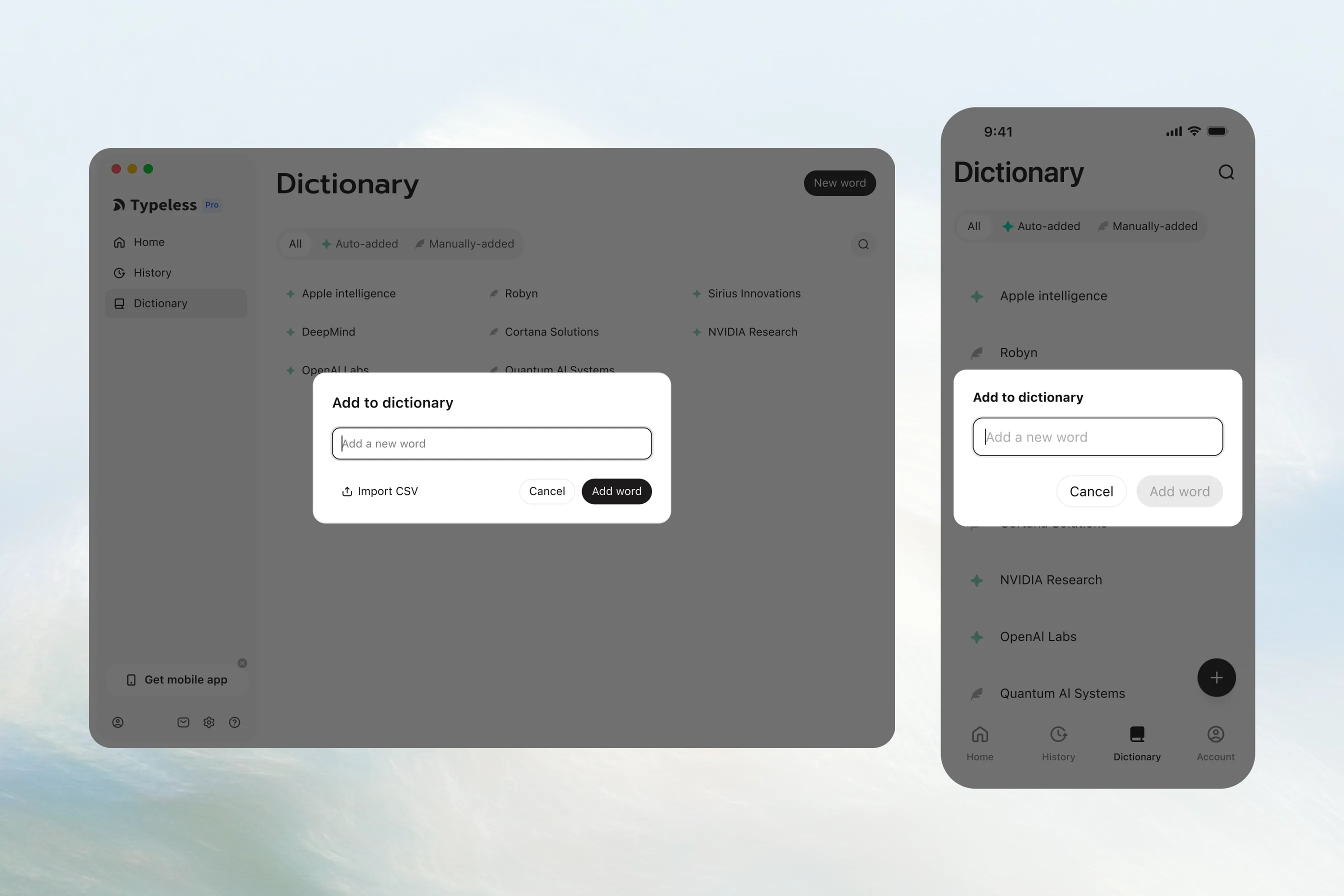
Bulk import
- On desktop, click New word.
- Click Import CSV.
- Choose the CSV file that contains the words you want to add.
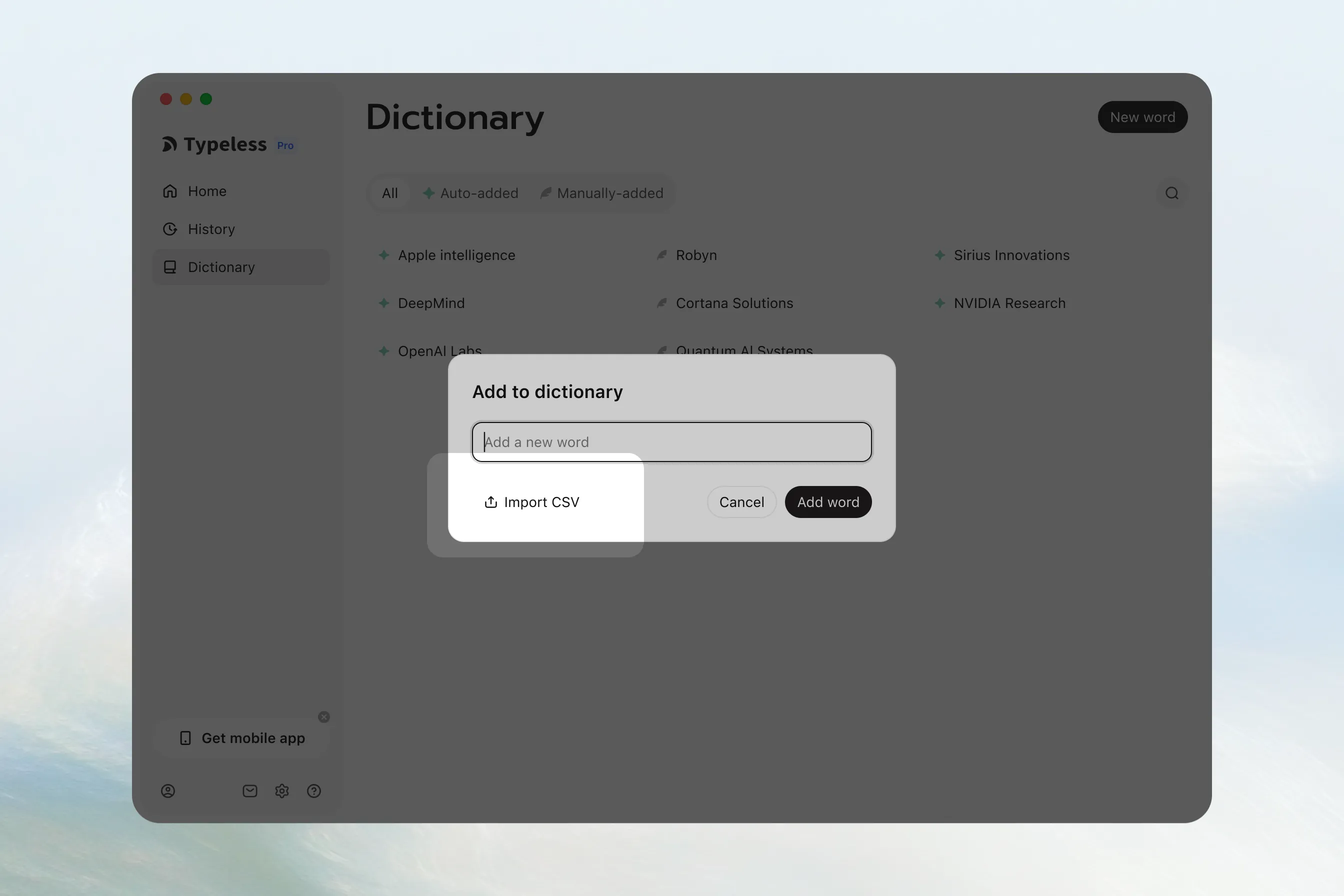
You can find the words and phrases you added under Manually-added, and Typeless can recognize them in your dictations.
Update or delete a word
Find the word you want to update or delete. If it is not immediately visible, click or tap the Search icon in the top-right corner of Dictionary and enter all or part of the word.
On desktop, move your cursor to the word and click Edit or Delete. On mobile, tap the word to edit it, or swipe left and tap Edit or Delete. Save your changes or confirm the deletion.