Dictate
Turn messy thoughts into polished writing.
Use Dictate to write in any desktop or mobile app when speaking is the most natural way to get your thoughts down. You can talk through ideas in your own order, add context, and correct yourself as you go, then receive a polished message, email, or document that reflects what you intended to say.
Use Dictate
Start dictating in the app where you want to write, speak naturally, and stop when you are done.
On desktop
- Open any app and click the text field where you want to write.
- Press the keyboard shortcut for Dictate once (default: Fn on macOS, Right Alt on Windows).
- When you hear the interaction sound or see the Voice bar, start speaking naturally.
- Press the keyboard shortcut again when you are done. Your polished writing appears where you began dictating.
On mobile
- Open any app and tap the text field where you want to write.
- Tap the Speak button on the Typeless keyboard once, then start speaking naturally.
- Tap the Speak button again when you are done. Your polished writing appears where you began dictating.
Set up language variants
Set the regional variants that match how you speak and write. Typeless supports variants for English, Chinese, Spanish, French, and Portuguese.
On desktop
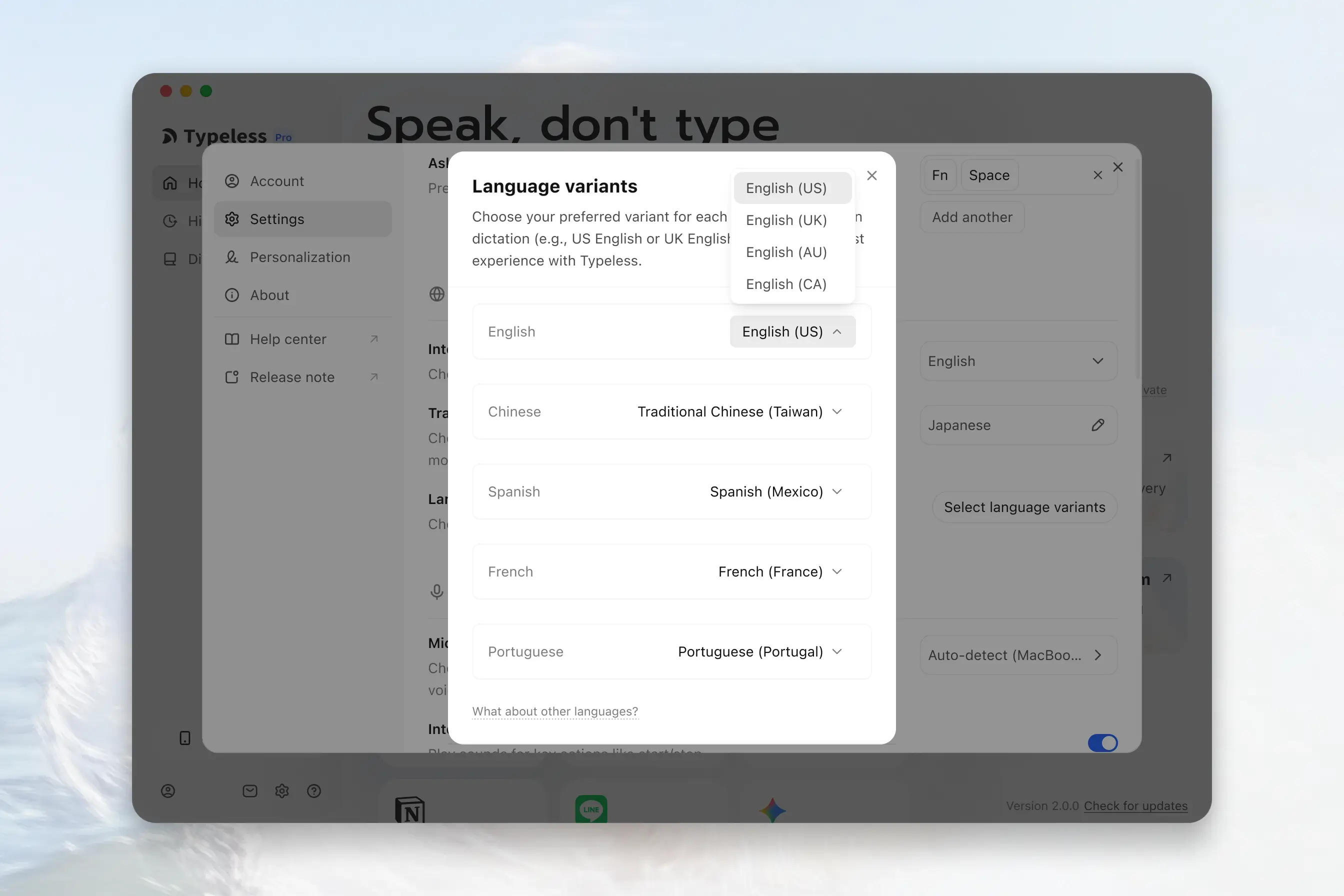
- Open Typeless, then click the Settings icon in the bottom-left corner.
- Under Language, click Select language variants.
- Choose your preferred variant for each language you dictate in.
On mobile
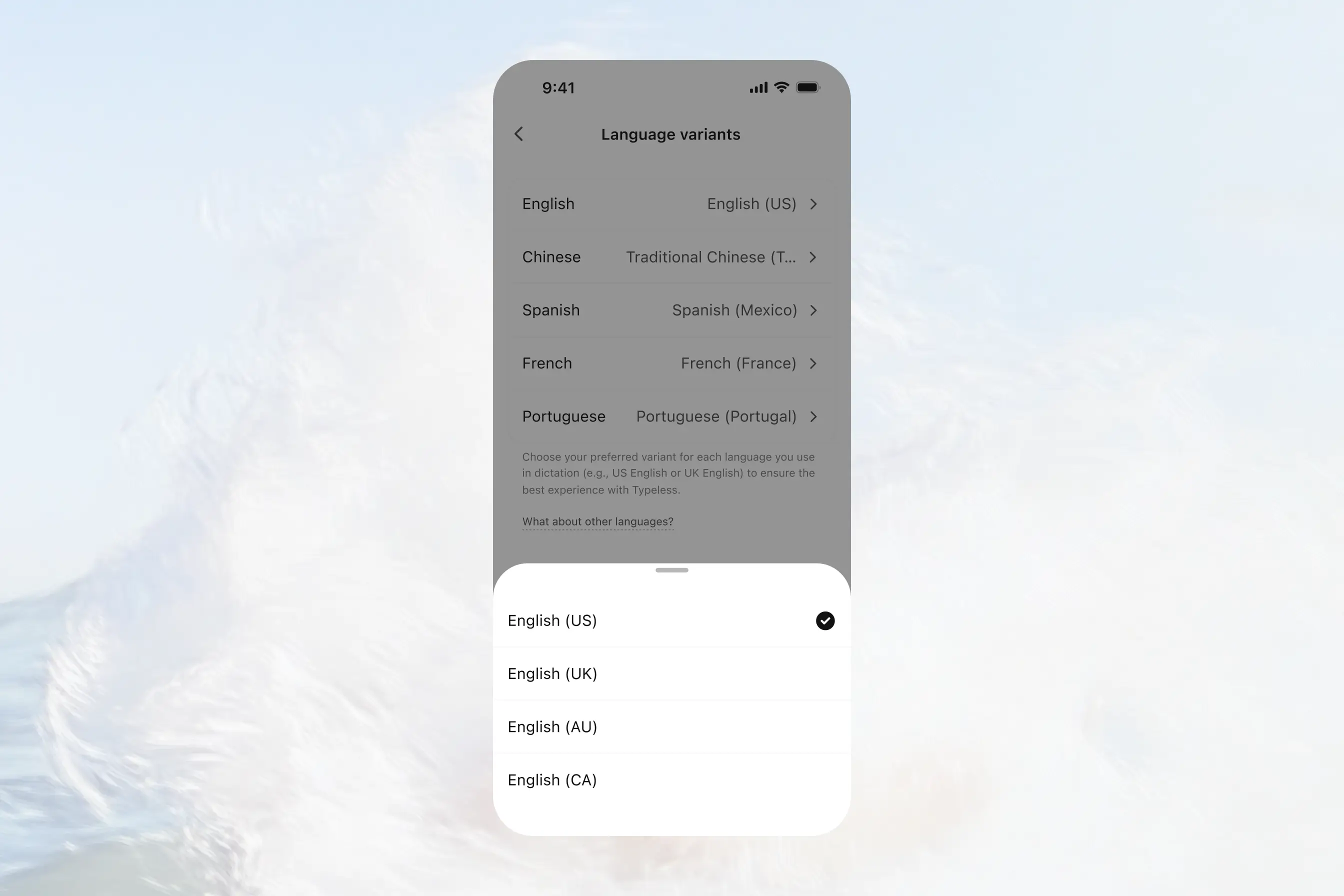
- Open Typeless, then tap Account.
- Tap Settings, then Language variants.
- Choose your preferred variant for each language you dictate in.