Set up soundcore Work with Typeless
Learn how to connect soundcore Work to Typeless on macOS, Windows, iOS, or Android, and use it as your microphone.
Firmware update required
To use soundcore Work with Typeless, first update its firmware using the soundcore app.
Before you begin
If you haven't installed Typeless yet, go to the Downloads page to download and install it. Then open Typeless and follow the in-app instructions to complete setup.
If you've already set up Typeless, go to the section for your device.
macOS
Step 1: Connect soundcore Work to your Mac
First, connect soundcore Work through your computer's Bluetooth settings. You'll then complete a separate connection and setup process inside Typeless.
Put soundcore Work into Bluetooth pairing mode
-
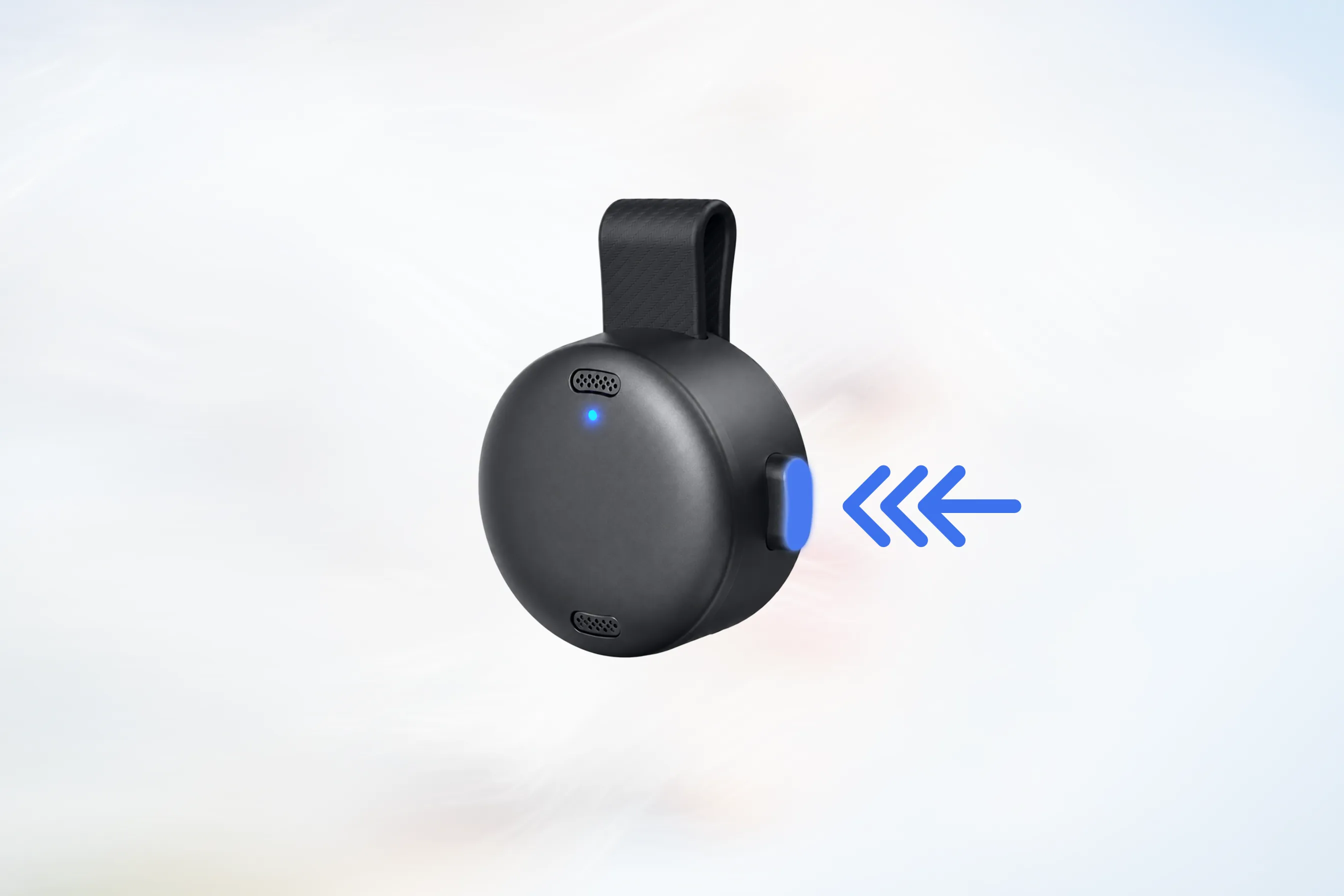
Take soundcore Work out of its case and make sure the side button is in the released position.
-
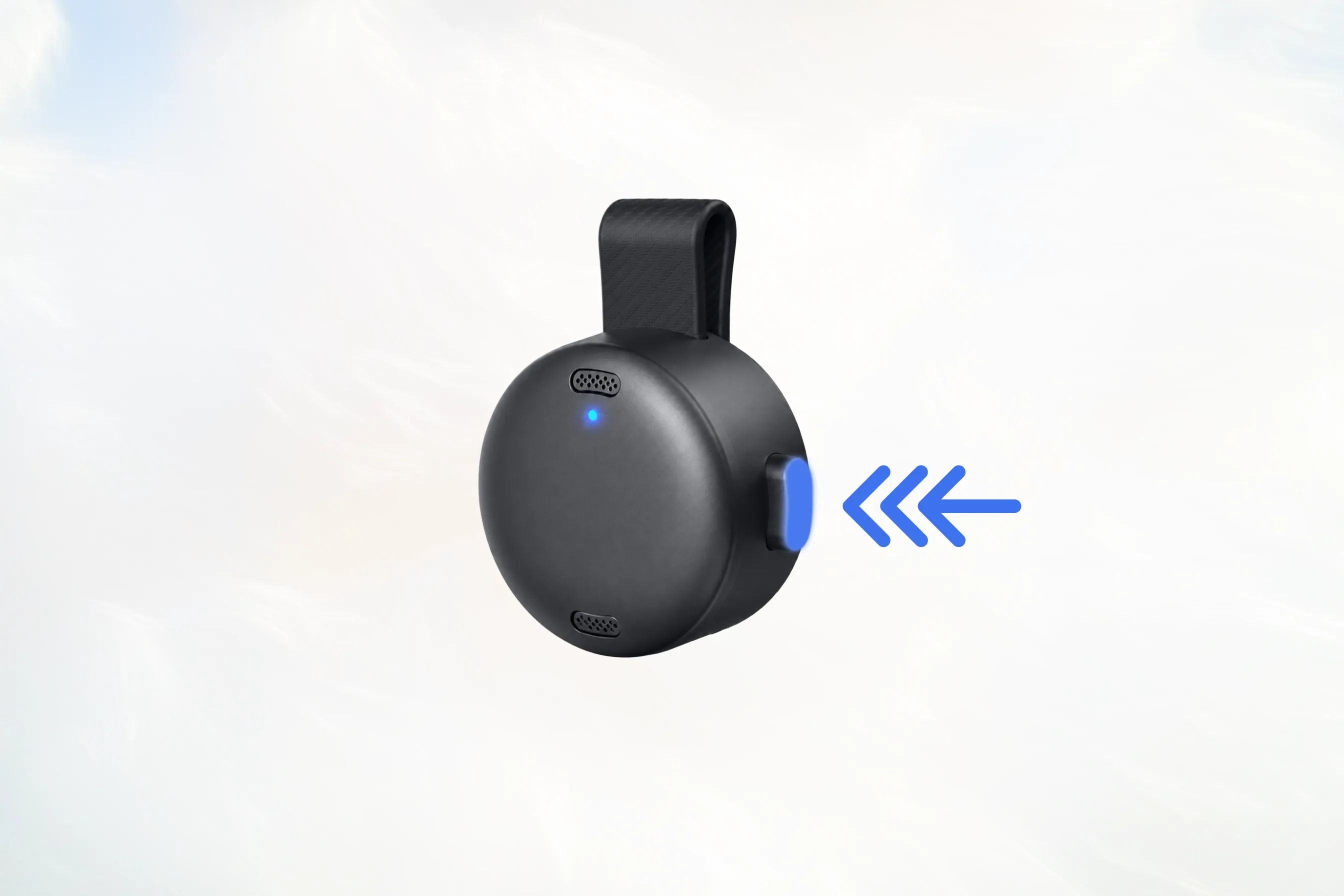
Press the side button three times in succession, ending with the button pressed in.
The button should move through these states: Pressed in → Released → Pressed in
-
When the indicator light starts flashing blue, soundcore Work is in Bluetooth pairing mode.
Connect on Mac
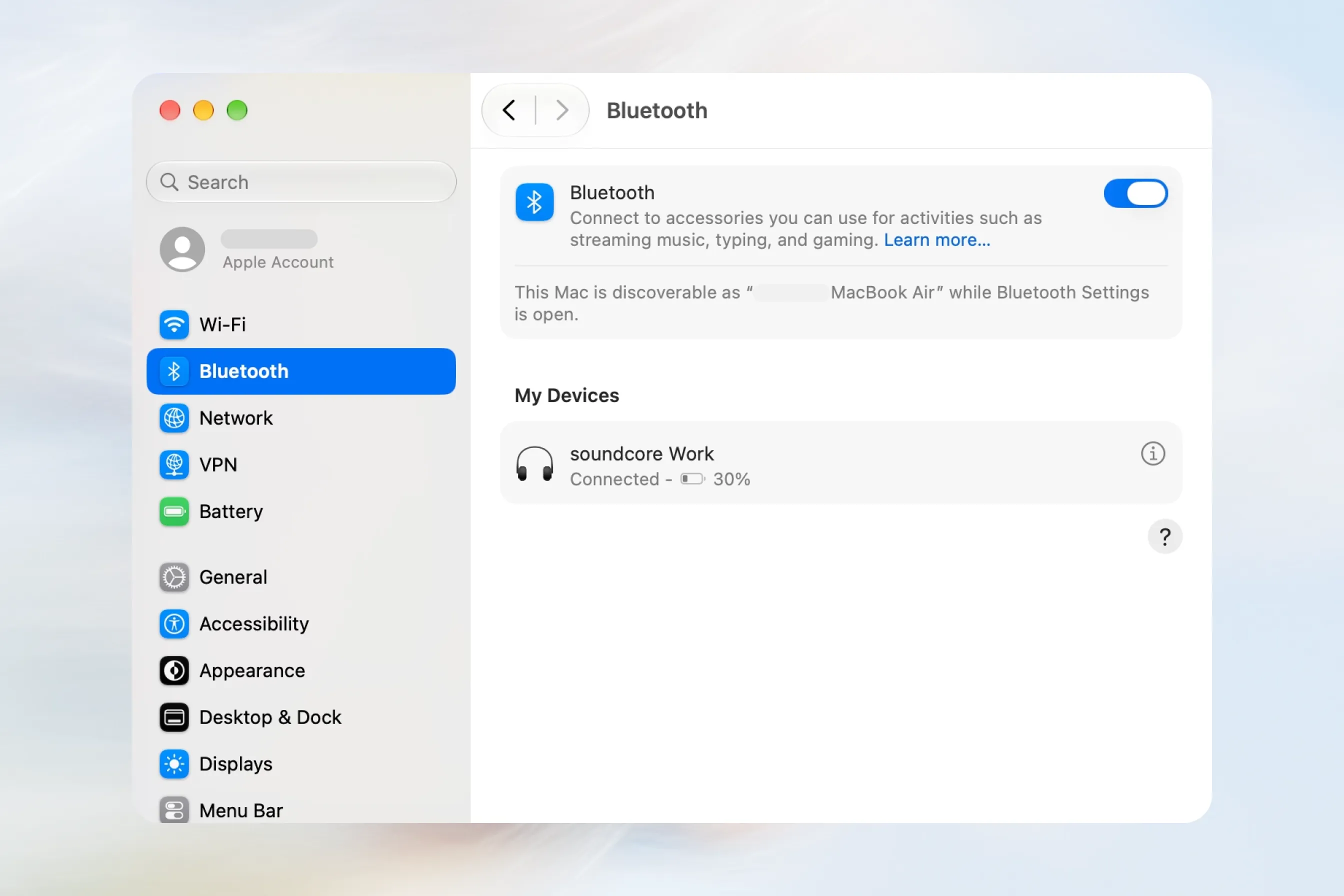
- Open System Settings > Bluetooth.
- Make sure Bluetooth is turned on.
- Find soundcore Work under Nearby Devices.
- Click Connect.
- Wait until soundcore Work is shown as connected.
Step 2: Connect soundcore Work to Typeless
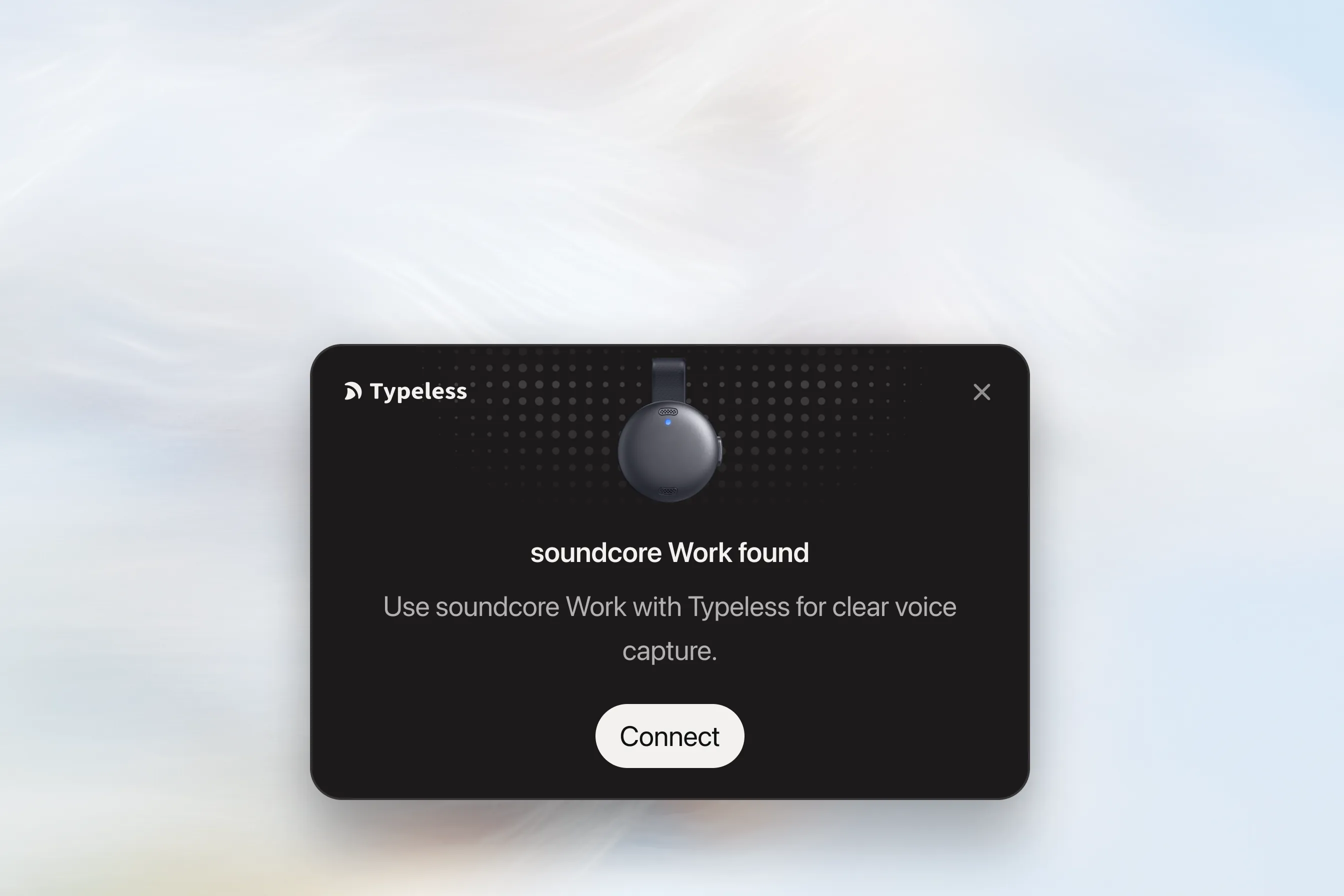
After the system Bluetooth connection is complete, Typeless will detect soundcore Work and display a "soundcore Work found" card on your desktop.
Click Connect on the card to begin.
Allow Bluetooth access
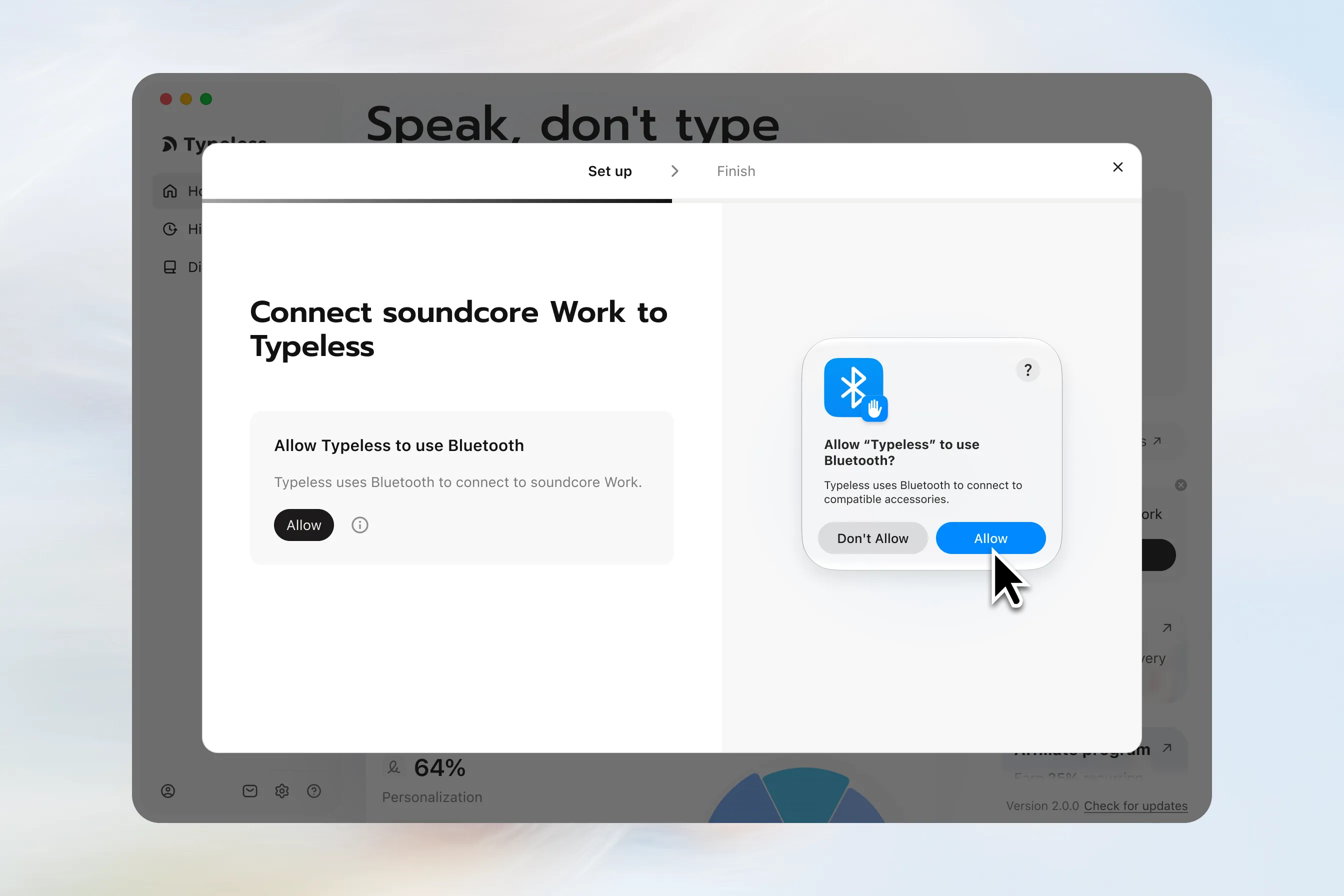
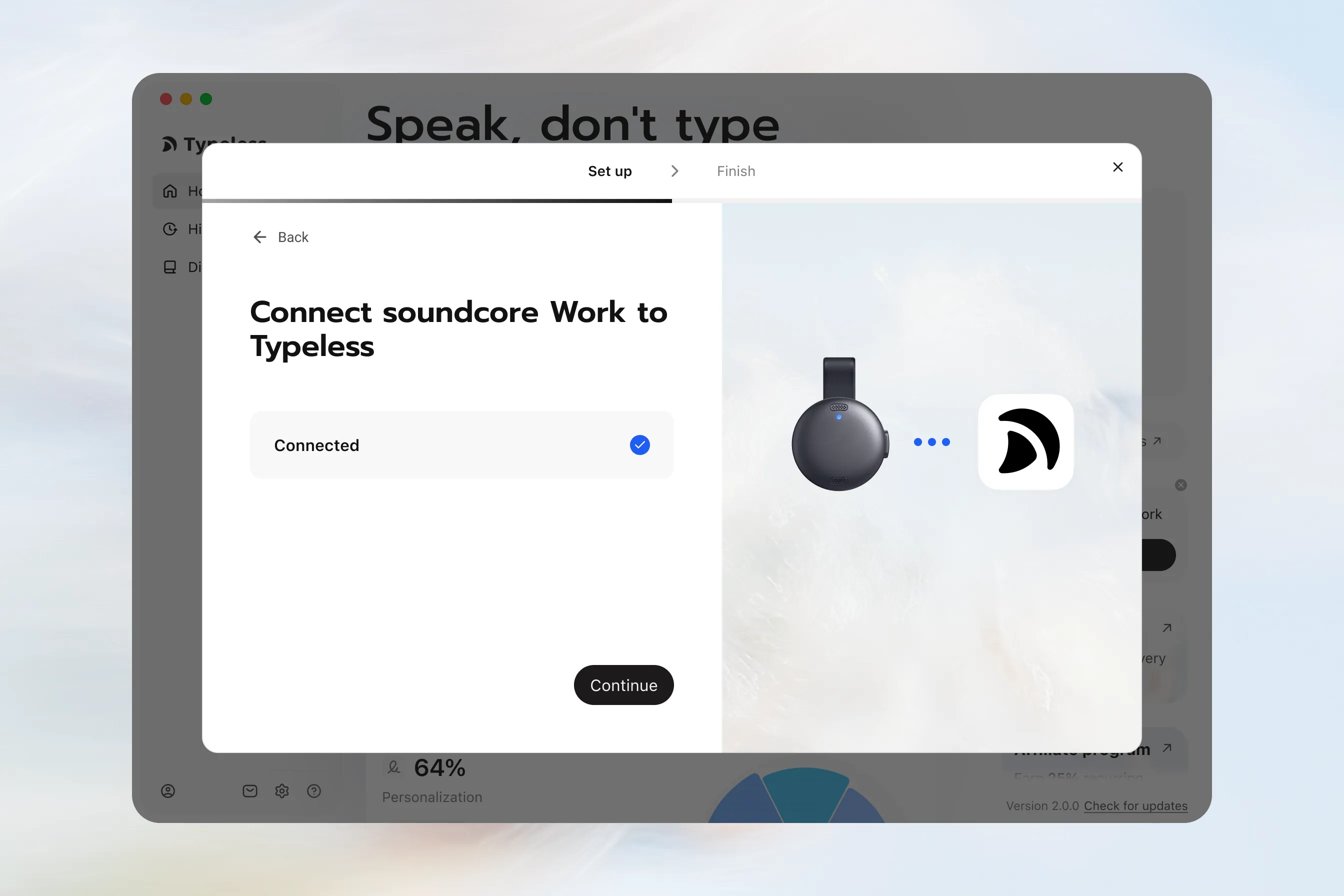
- On the "Connect soundcore Work to Typeless" screen, click Allow.
- Confirm Bluetooth access in the system permission dialog.
Wait for the connection
- After permission is granted, Typeless will connect automatically.
- Wait for the status to change from Connecting… to Connected.
- Click Continue.
Test the soundcore Work microphone
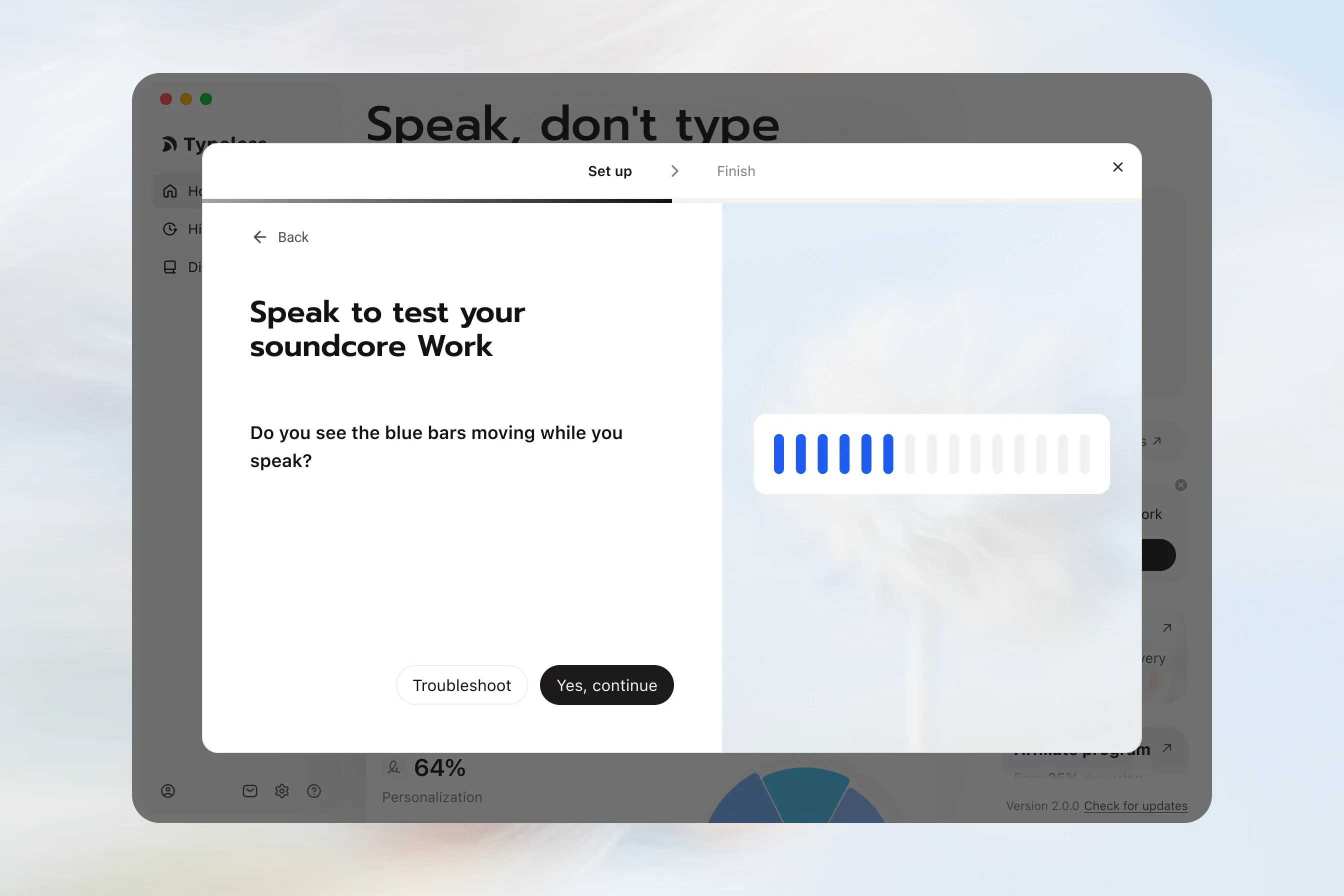
- On the "Speak to test your soundcore Work" screen, speak near the device.
- Watch the blue bars. They should move as you speak.
- Once the microphone detects your voice, Yes, continue becomes available.
- Click Yes, continue.
Learn the dictation gesture
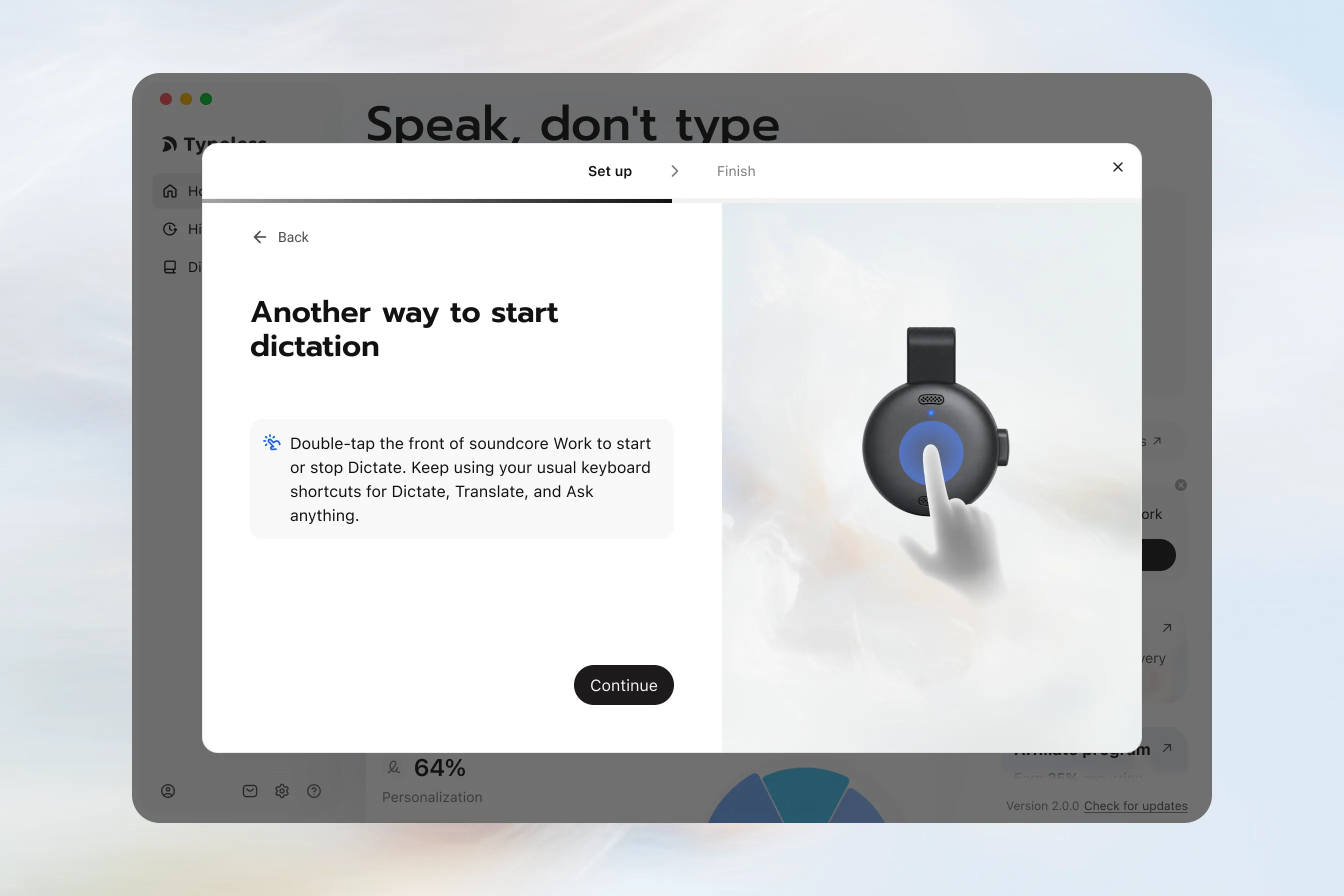
On the "Another way to start dictation" screen, review the instructions:
Double-tap the front of soundcore Work to start or stop Dictate. Keep using your usual keyboard shortcuts for Dictate, Translate, and Ask anything.
Click Continue after reading the instructions. You don't need to complete a dictation test on this screen.
Finish connecting
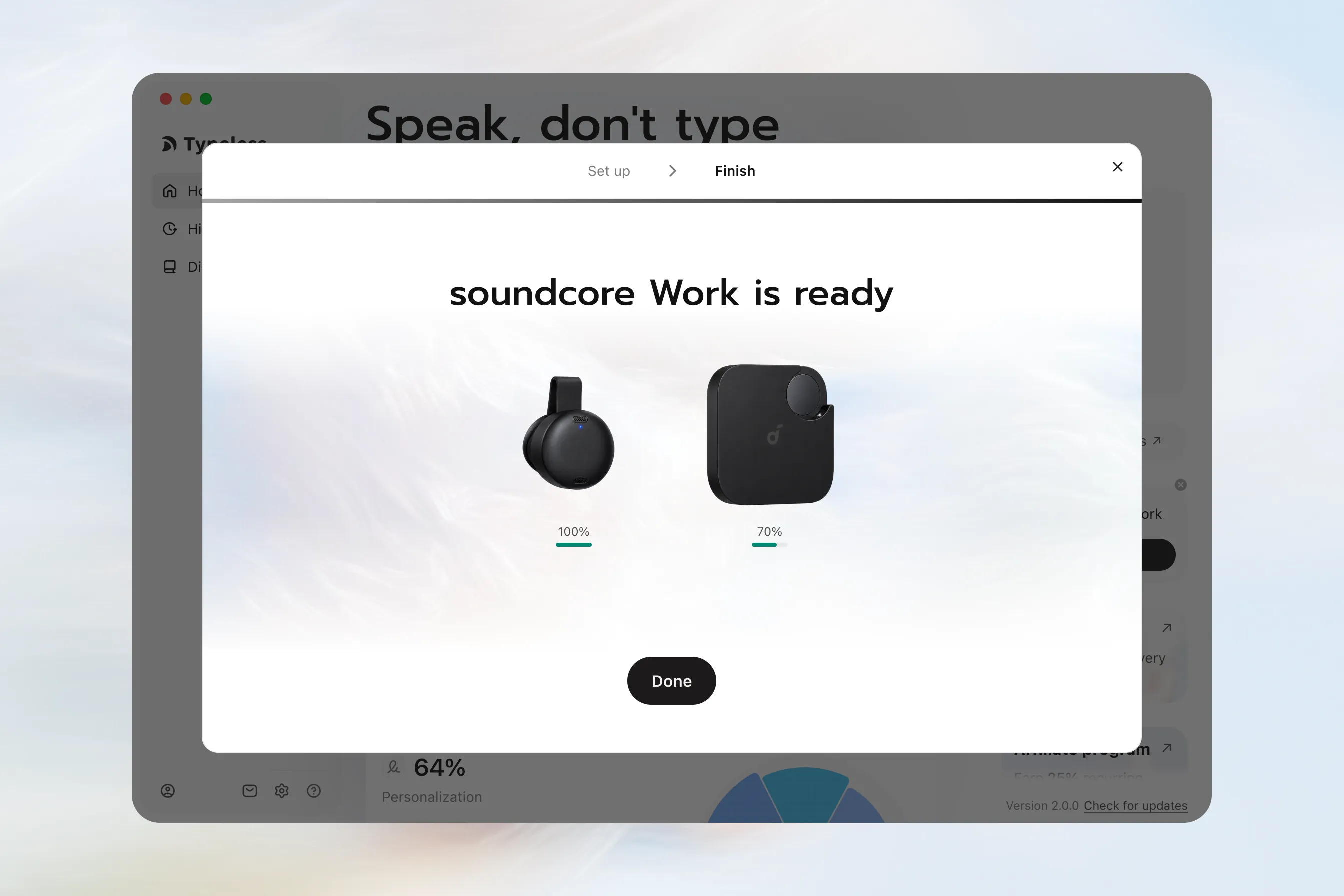
- On the soundcore Work is ready screen, click Done to finish setup.
- Typeless automatically switches its microphone to soundcore Work.
You can now view the soundcore Work device card on the Typeless Home page and begin dictating.
Step 3: Use Typeless as usual
- Clip soundcore Work to your collar and use it as your microphone.
- Keep using your usual Typeless keyboard shortcuts for Dictate, Translate, and Ask anything.
Windows
Step 1: Connect soundcore Work to your computer
First, connect soundcore Work through your computer's Bluetooth settings. You'll then complete a separate connection and setup process inside Typeless.
Put soundcore Work into Bluetooth pairing mode
-
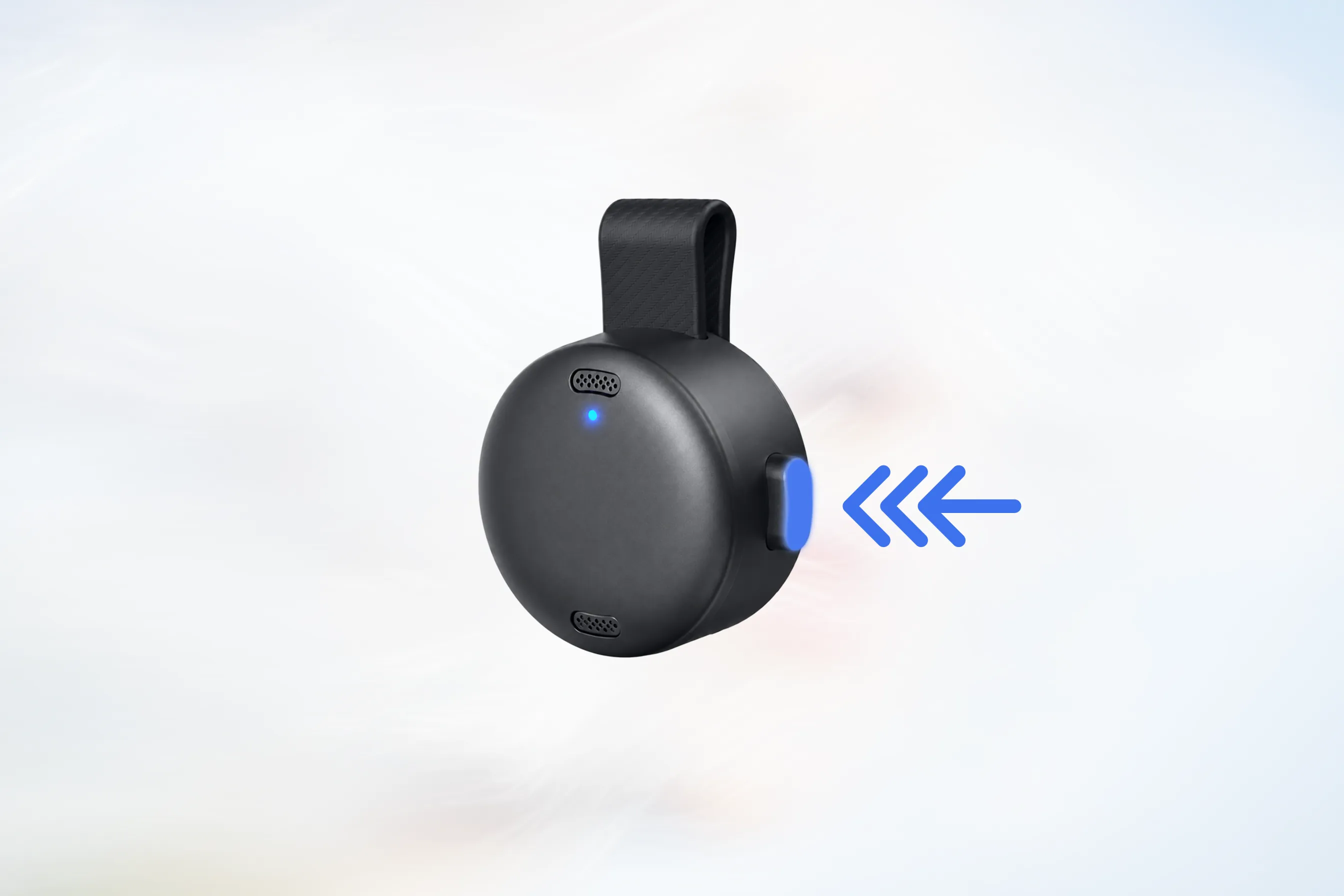
Take soundcore Work out of its case and make sure the side button is in the released position.
-
Press the side button three times in succession, ending with the button pressed in.
The button should move through these states: Pressed in → Released → Pressed in
-
When the indicator light starts flashing blue, soundcore Work is in Bluetooth pairing mode.
Connect on Windows
For Windows 11:
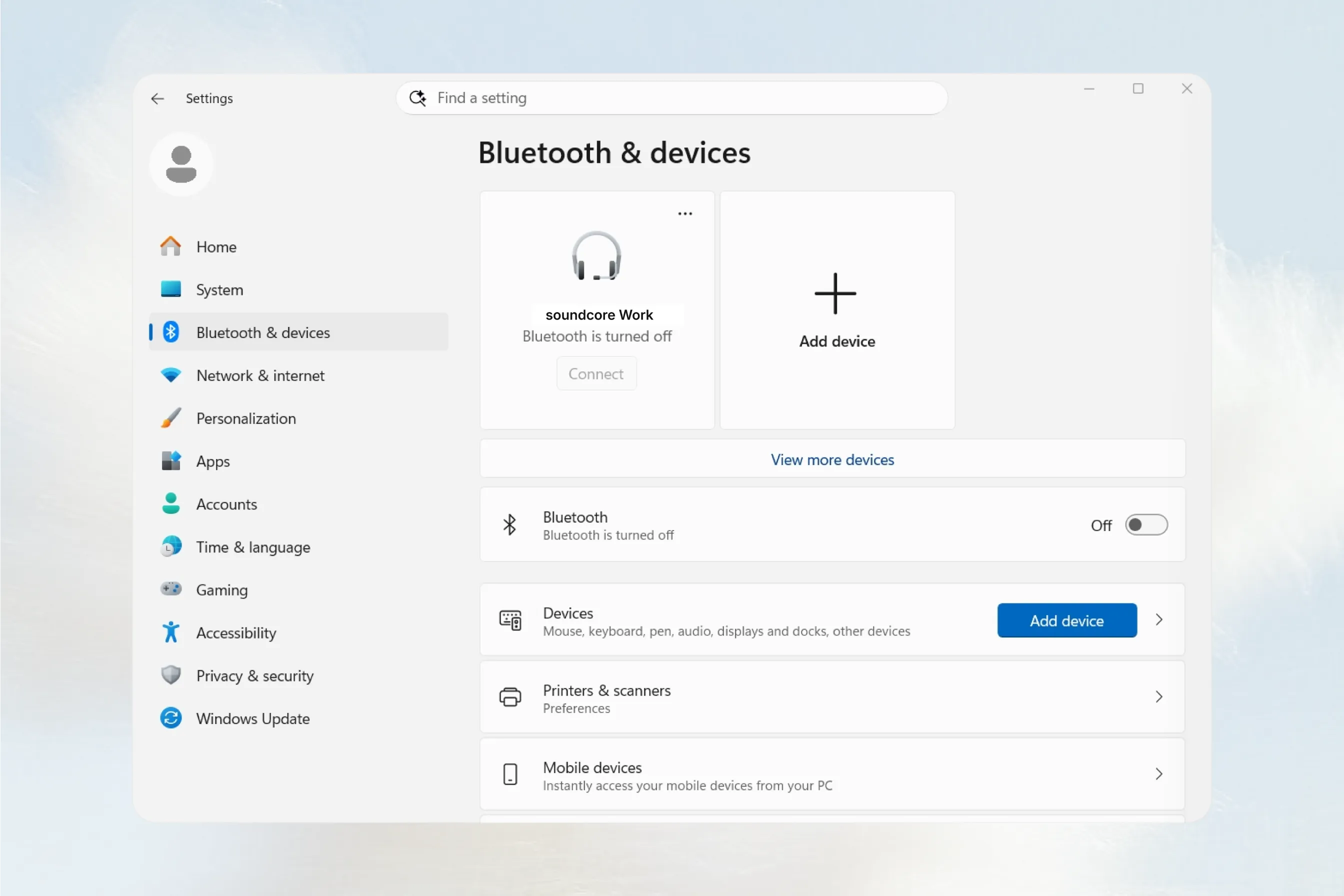
- Open Settings > Bluetooth & devices.
- Make sure Bluetooth is turned on.
- Click Add device.
- Select Bluetooth.
- Select soundcore Work and complete the connection.
- Wait until soundcore Work is shown as connected.
For Windows 10, open Settings > Devices > Bluetooth & other devices, turn on Bluetooth, and add soundcore Work as a Bluetooth device.
Step 2: Connect soundcore Work to Typeless
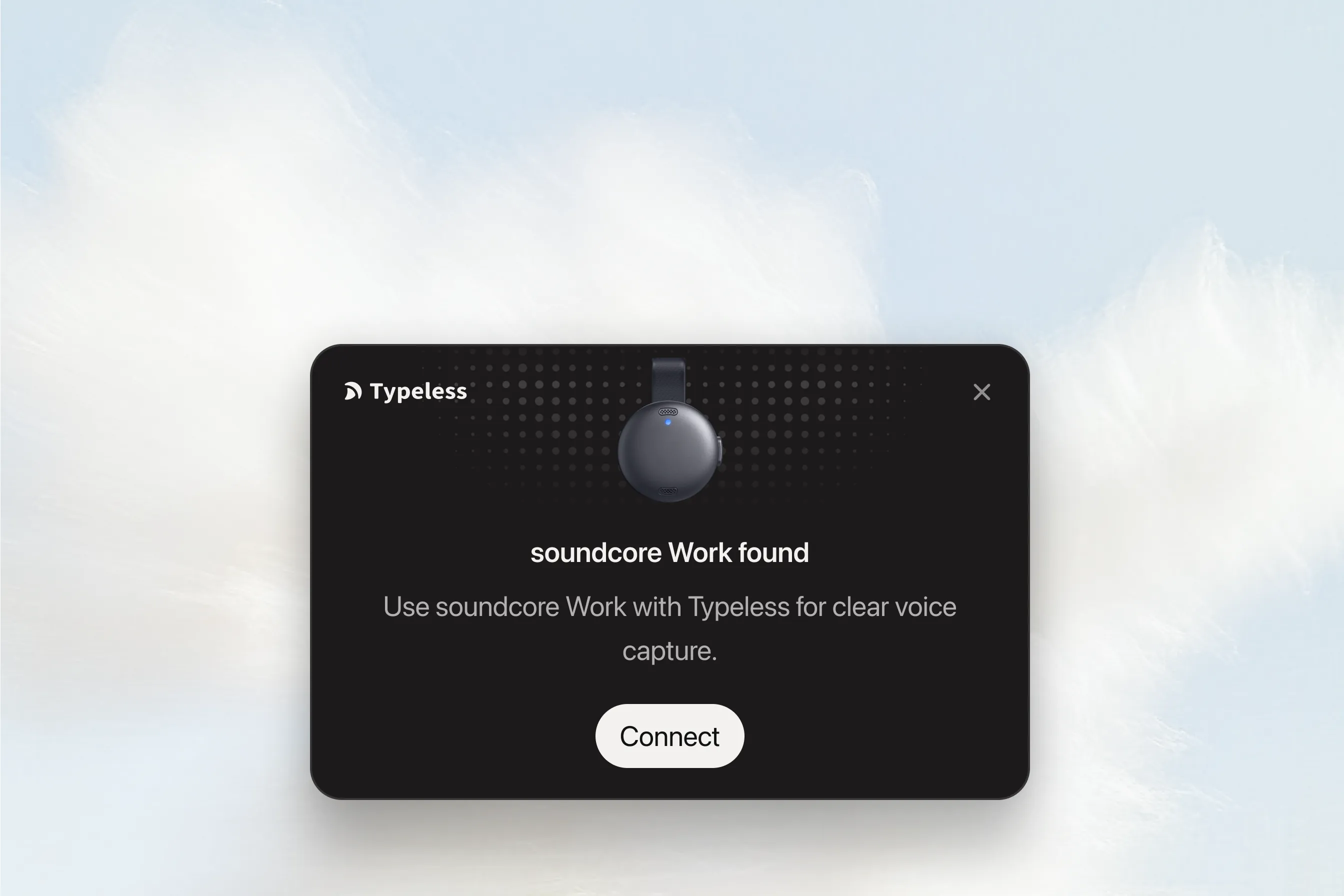
After the system Bluetooth connection is complete, Typeless will detect soundcore Work and display a "soundcore Work found" card on your desktop.
Click Connect on the card to begin.
Allow Bluetooth access
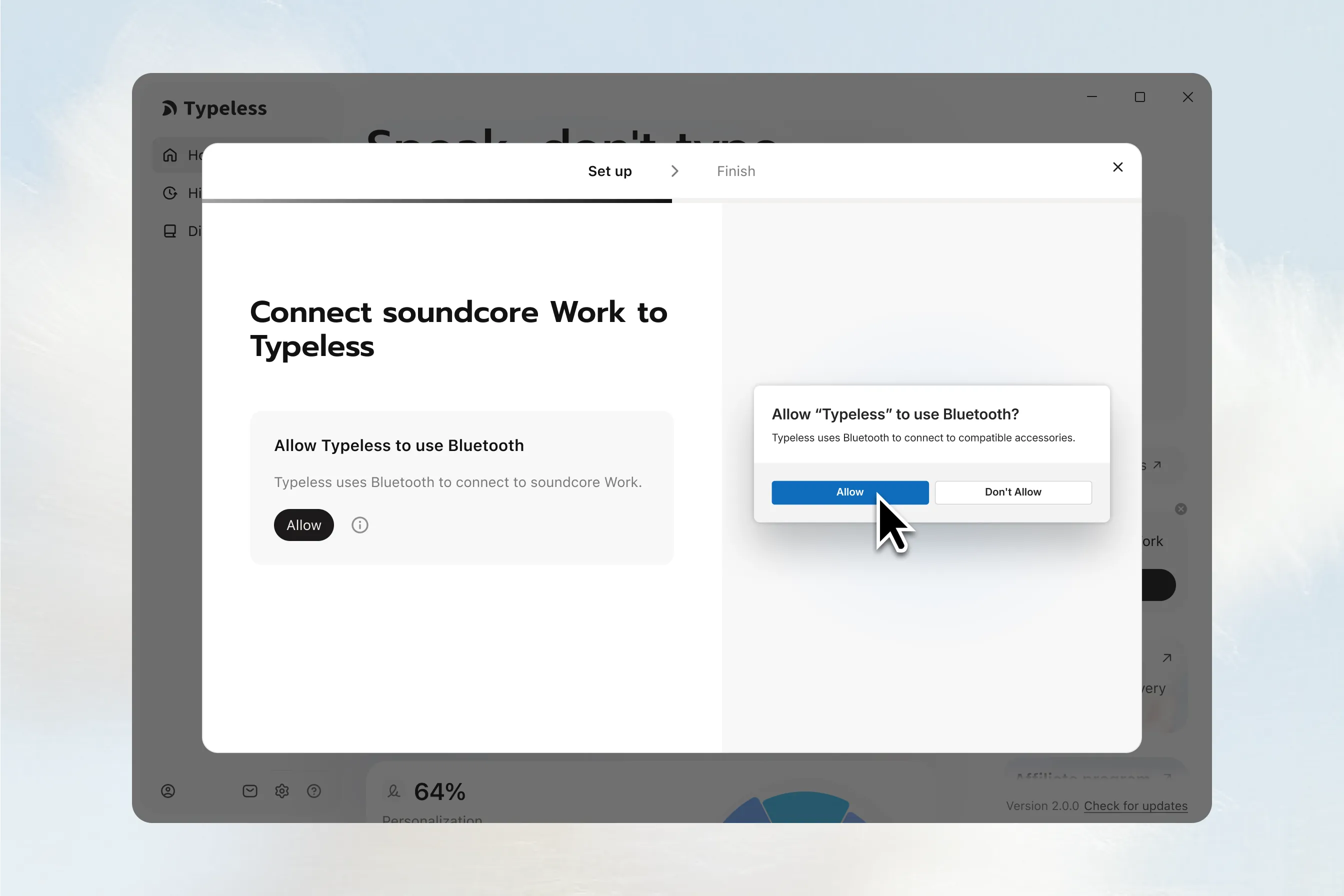
- On the "Connect soundcore Work to Typeless" screen, click Allow.
- Confirm Bluetooth access in the system permission dialog.
Wait for the connection
- After permission is granted, Typeless will connect automatically.
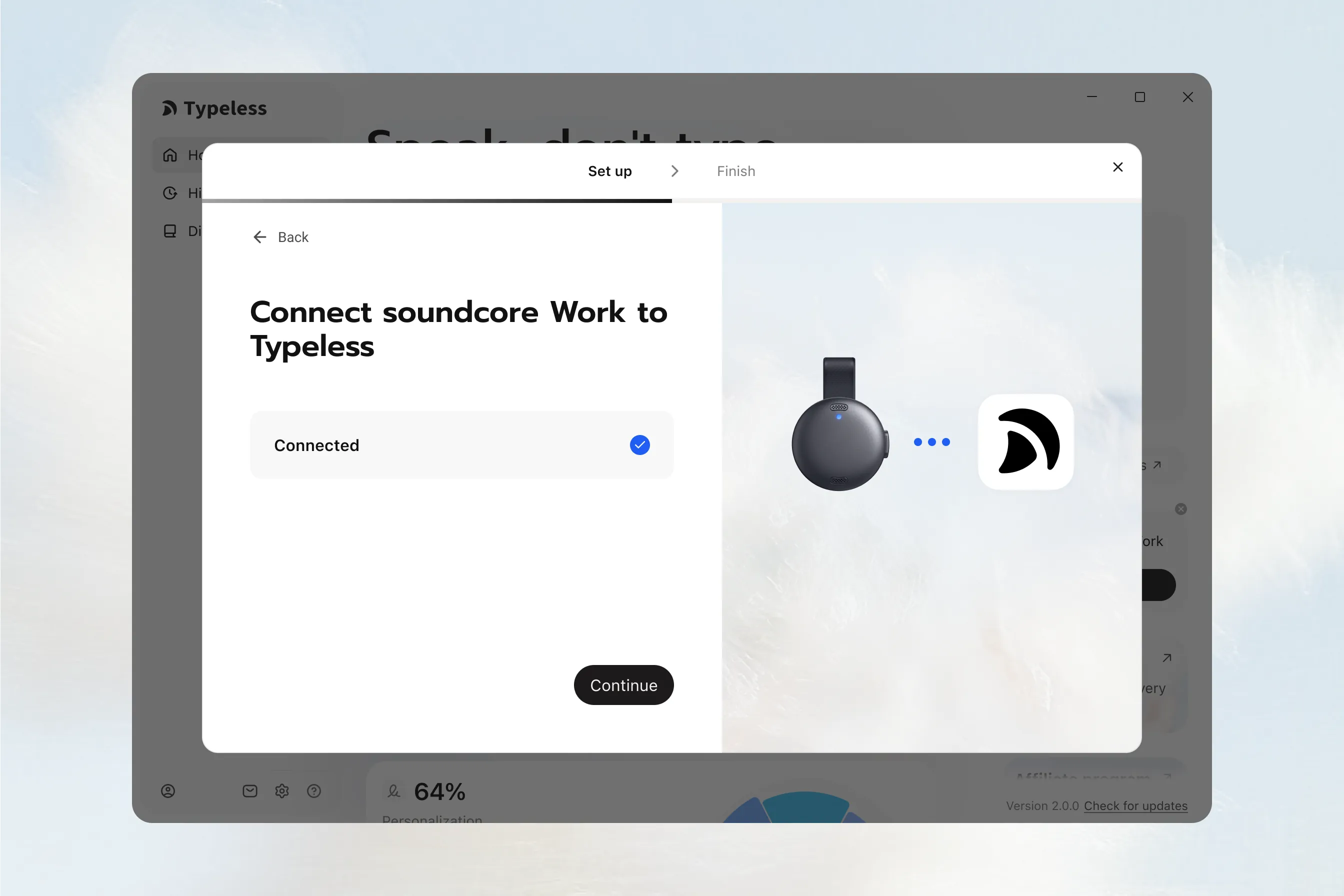
- Wait for the status to change from Connecting… to Connected.
- Click Continue.
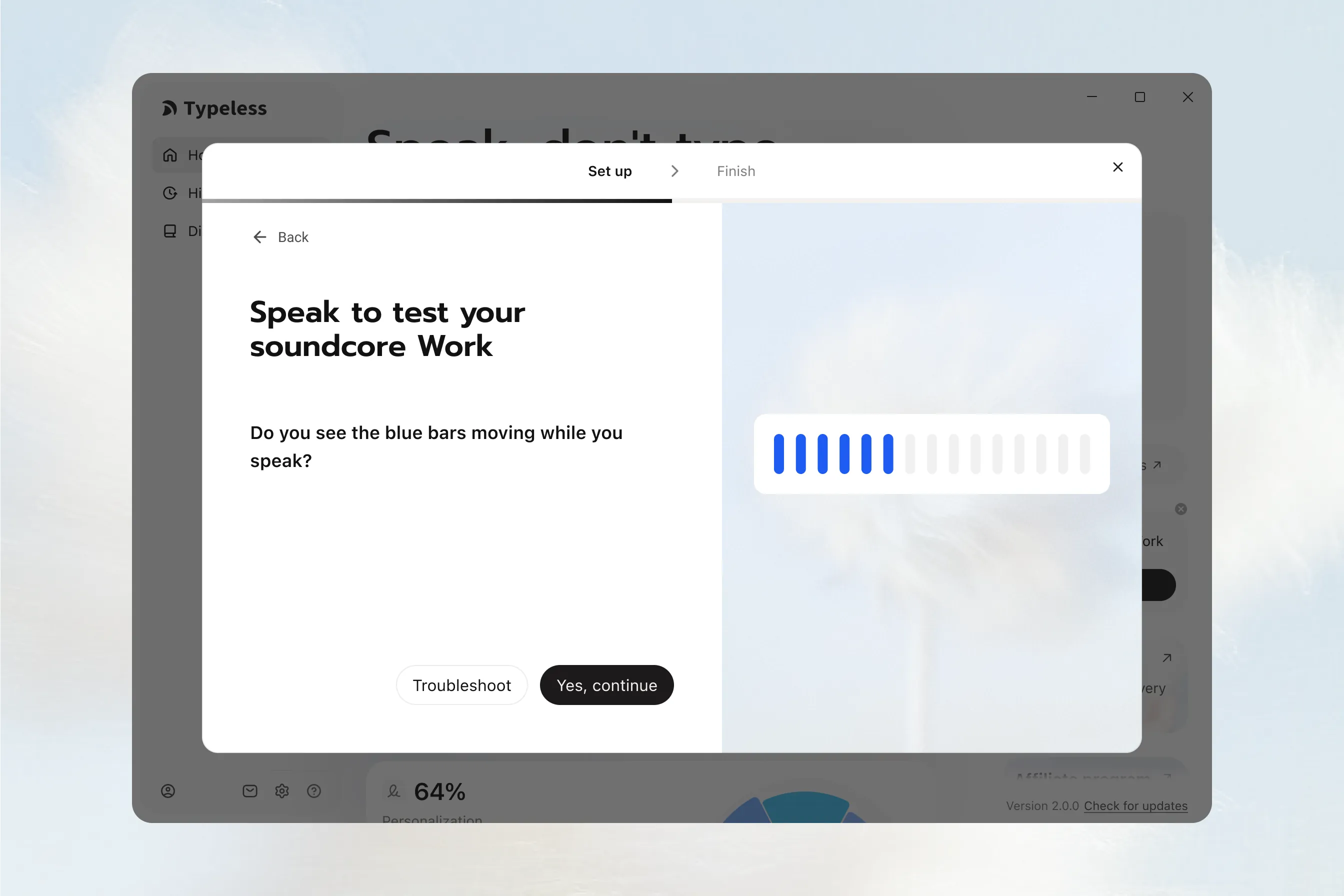
Test the soundcore Work microphone
- On the "Speak to test your soundcore Work" screen, speak near the device.
- Watch the blue bars. They should move as you speak.
- Once the microphone detects your voice, Yes, continue becomes available.
- Click Yes, continue.
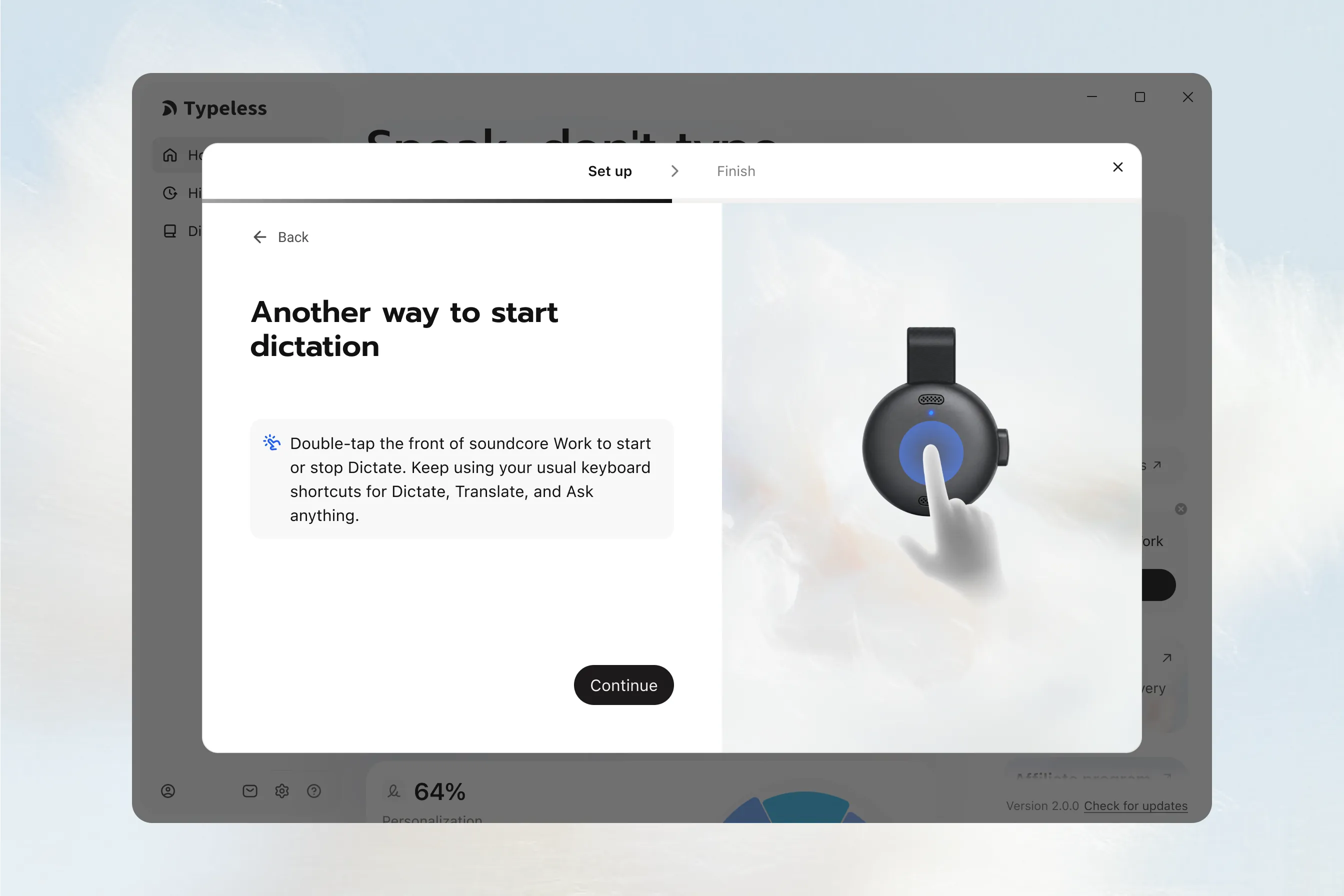
Learn the dictation gesture
On the "Another way to start dictation" screen, review the instructions:
Double-tap the front of soundcore Work to start or stop Dictate. Keep using your usual keyboard shortcuts for Dictate, Translate, and Ask anything.
Click Continue after reading the instructions. You don't need to complete a dictation test on this screen.
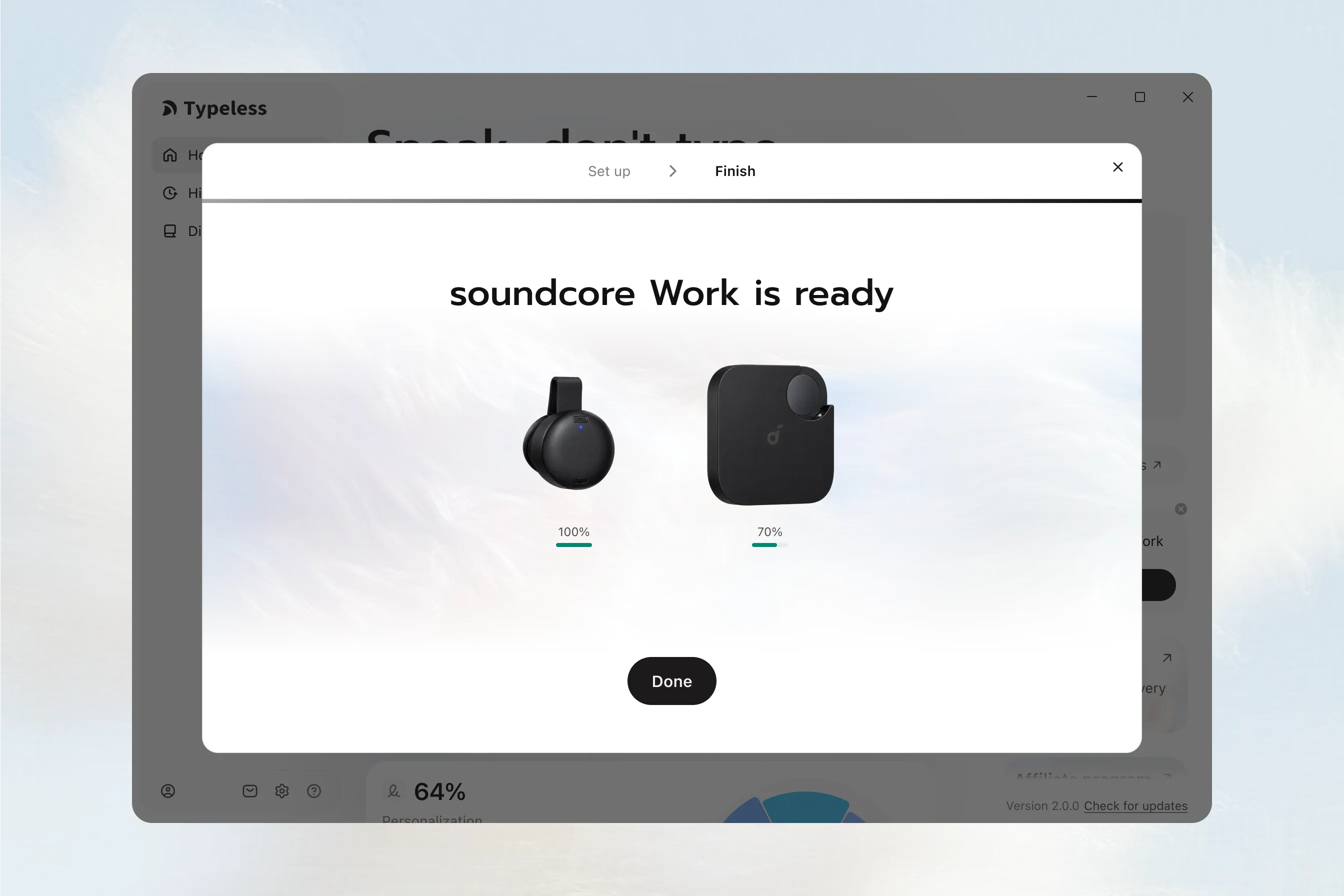
Finish connecting
- On the soundcore Work is ready screen, click Done to finish setup.
- Typeless automatically switches its microphone to soundcore Work.
You can now view the soundcore Work device card on the Typeless Home page and begin dictating.
Step 3: Use Typeless as usual
- Clip soundcore Work to your collar and use it as your microphone.
- Keep using your usual Typeless keyboard shortcuts for Dictate, Translate, and Ask anything.
iOS
Step 1: Connect soundcore Work to your iPhone
First, connect soundcore Work through your iPhone's Bluetooth settings. You'll then complete a separate connection and setup process inside Typeless.
Put soundcore Work into Bluetooth pairing mode
-
Take soundcore Work out of its case and make sure the side button is in the released position.
-
Press the side button three times in succession, ending with the button pressed in.
The button should move through these states: Pressed in → Released → Pressed in
-
When the indicator light starts flashing blue, soundcore Work is in Bluetooth pairing mode.
Connect on iPhone
- Open Settings > Bluetooth.
- Make sure Bluetooth is turned on.
- Find soundcore Work in the device list.
- Tap soundcore Work to connect.
- Wait until soundcore Work is shown as connected.
Step 2: Connect soundcore Work to Typeless
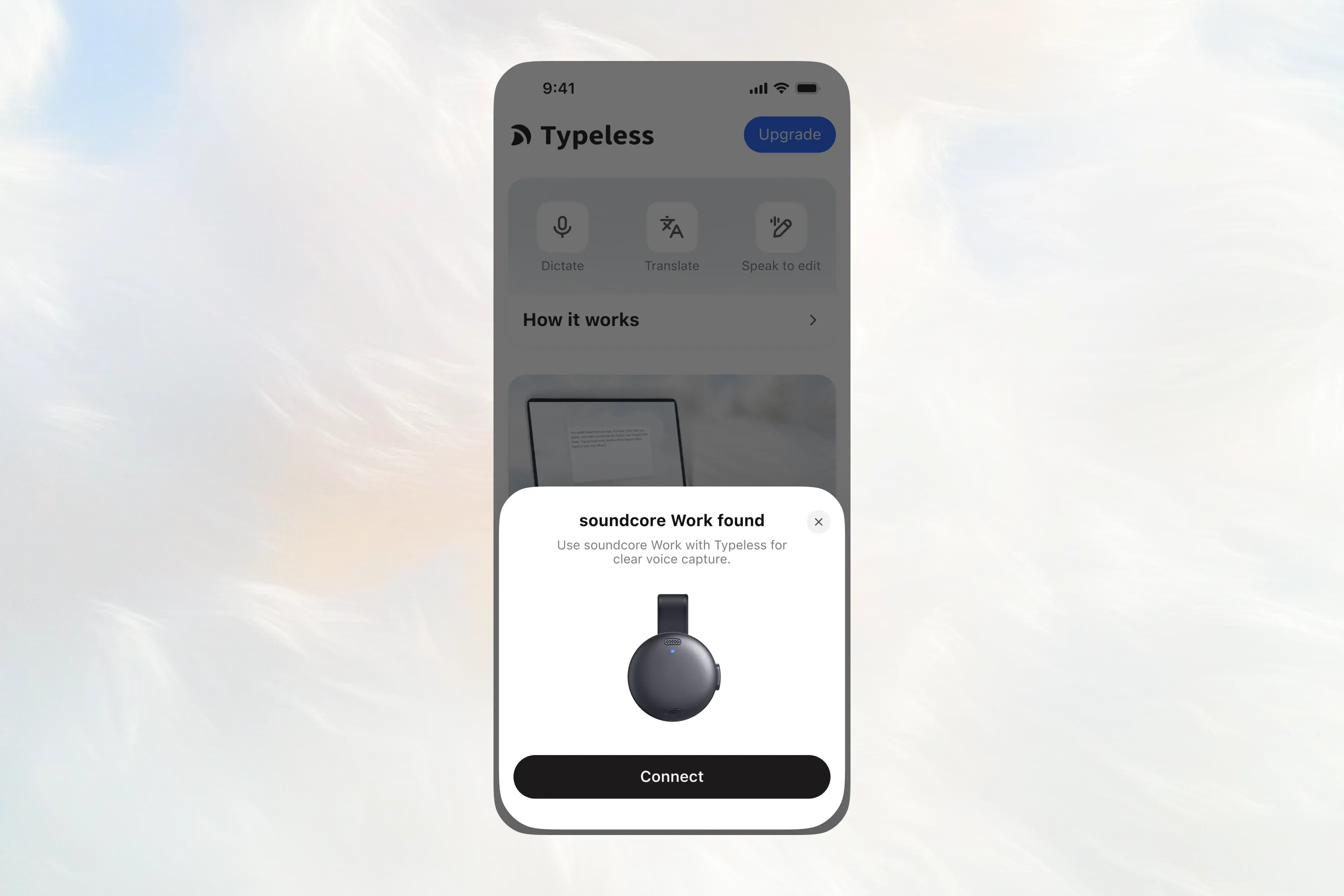
After the system Bluetooth connection is complete, open Typeless on your iPhone. A "soundcore Work found" pop-up will appear.
Tap Connect on the pop-up to begin.
Confirm the connection
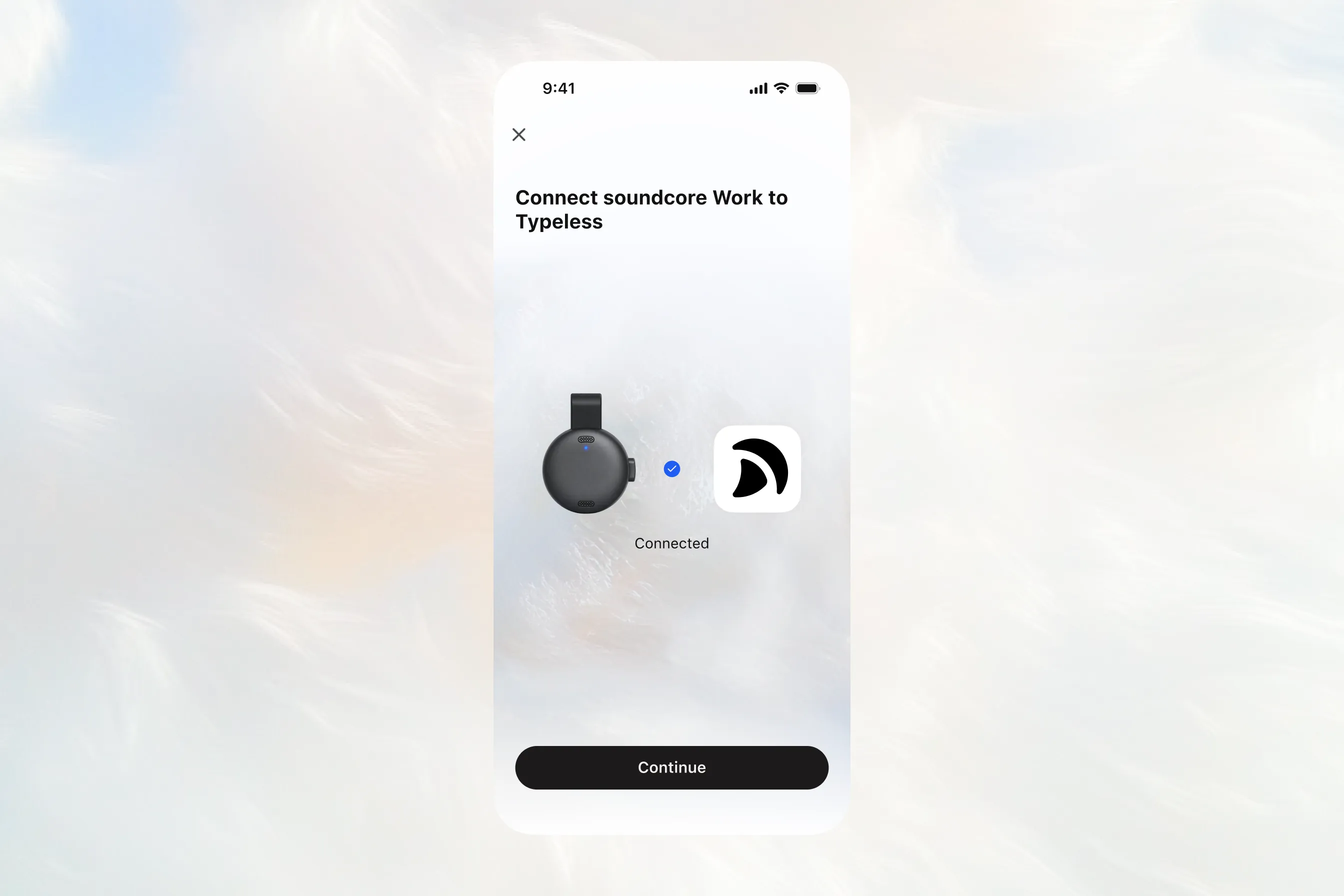
- On the "Connect soundcore Work to Typeless" screen, confirm that the status shows Connected.
- Tap Continue.
Test the soundcore Work microphone
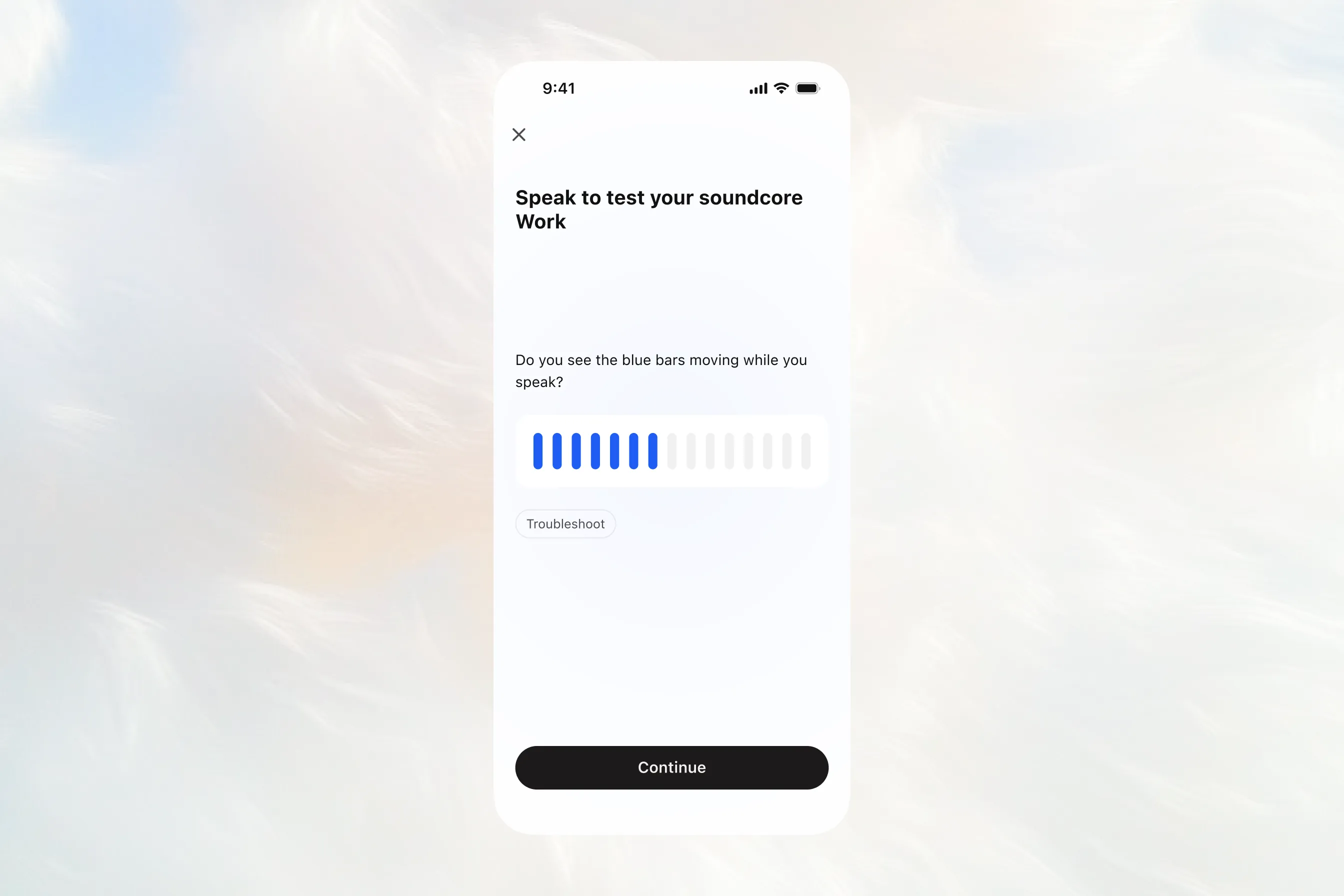
- On the "Speak to test your soundcore Work" screen, speak near the device.
- Watch the blue bars. They should move as you speak.
- Once the microphone detects your voice, Continue becomes available.
- Tap Continue.
Finish connecting
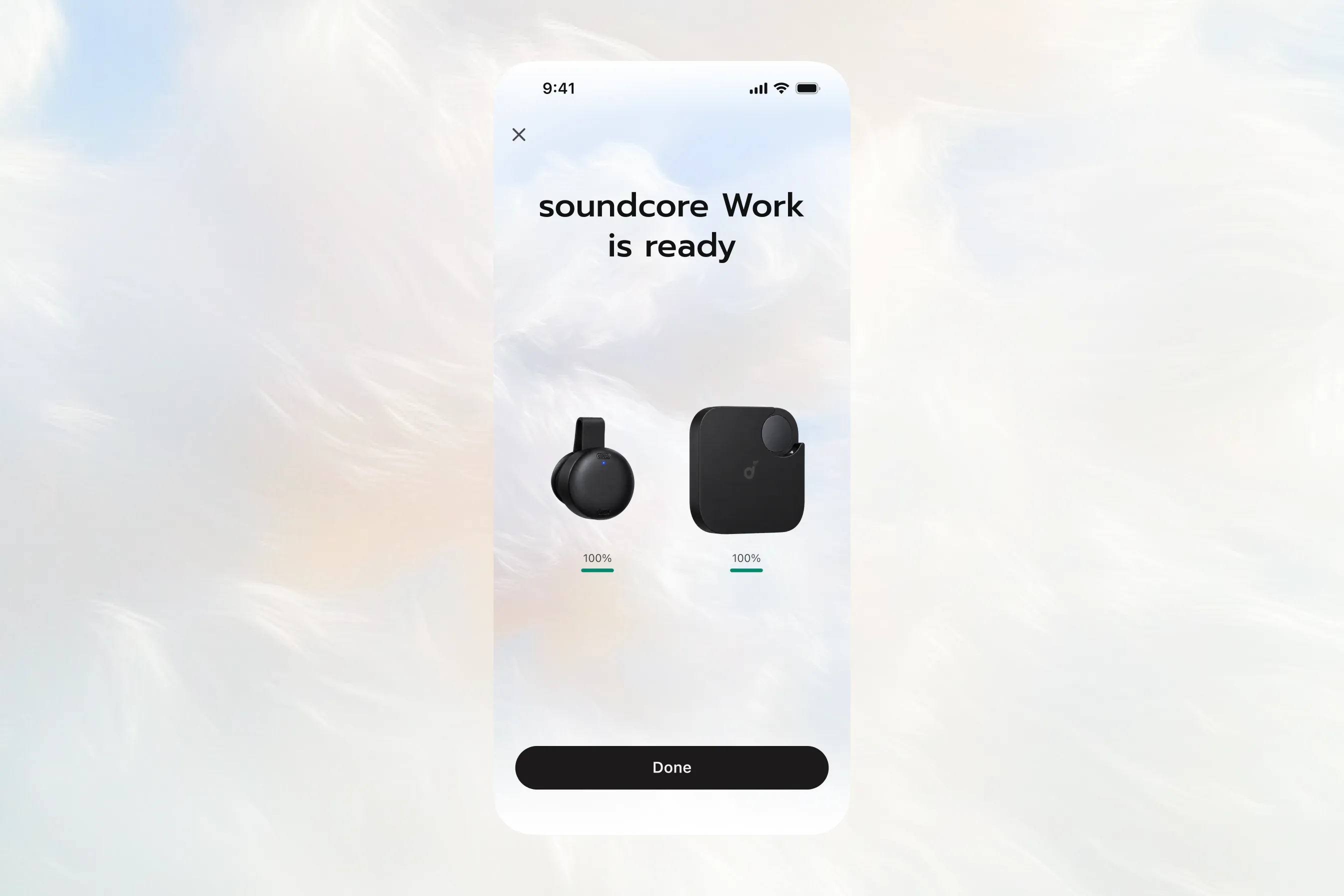
On the "soundcore Work is ready" screen, tap Done to finish setup.
soundcore Work is now ready to use with Typeless.
Step 3: Use Typeless as usual
- Clip soundcore Work to your collar and use it as your microphone.
- Keep using your usual Typeless keyboard controls for Dictate, Translate, Edit, and Write.
Android
Step 1: Connect soundcore Work to your phone
First, connect soundcore Work through your phone's Bluetooth settings. You'll then complete a separate connection and setup process inside Typeless.
Put soundcore Work into Bluetooth pairing mode
-
Take soundcore Work out of its case and make sure the side button is in the released position.
-
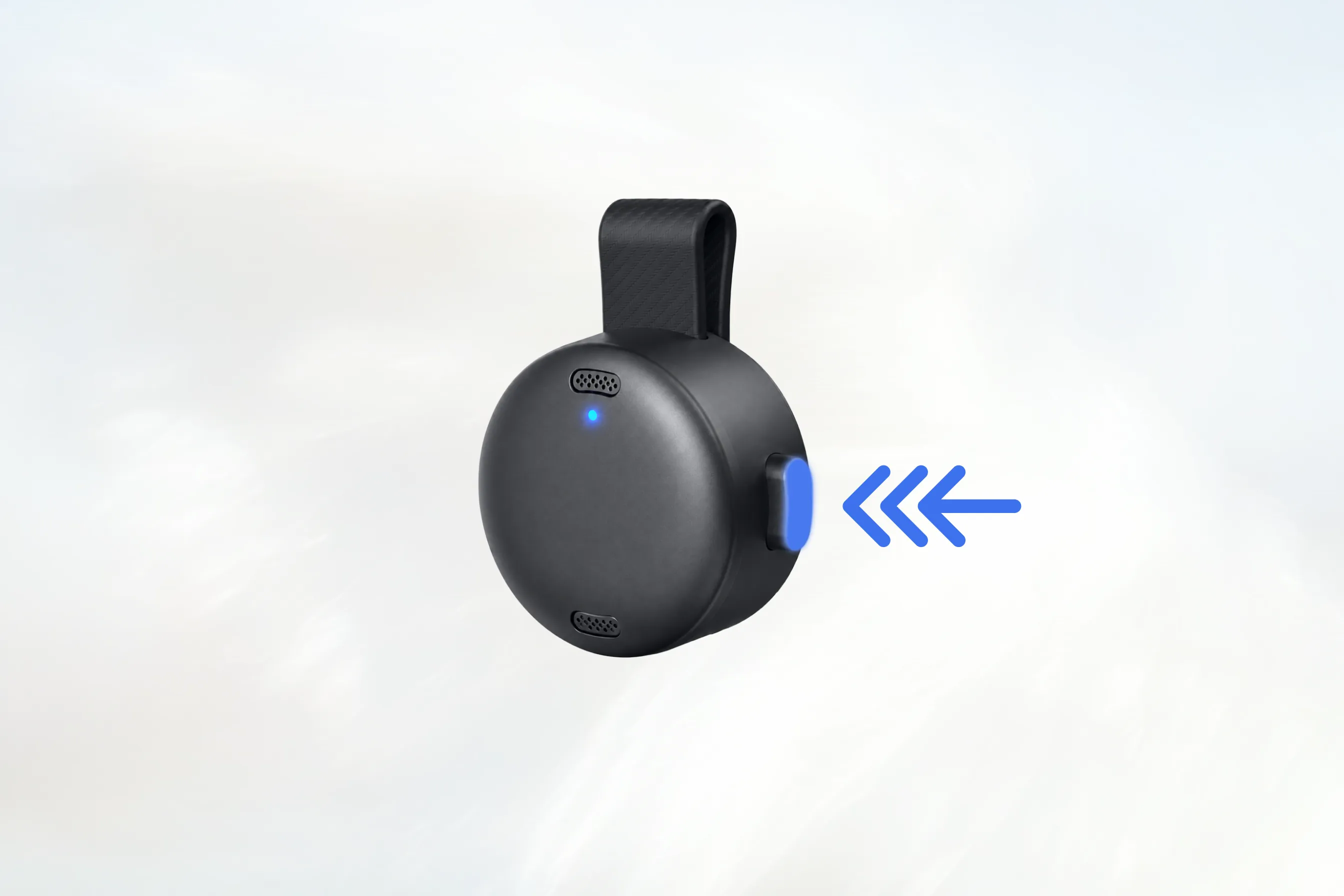
Press the side button three times in succession, ending with the button pressed in.
The button should move through these states: Pressed in → Released → Pressed in
-
When the indicator light starts flashing blue, soundcore Work is in Bluetooth pairing mode.
Connect on Android
- Open your phone's Bluetooth settings.
- Make sure Bluetooth is turned on.
- Tap Pair new device, or find the list of available devices.
- Select soundcore Work and complete the connection.
- Wait until soundcore Work is shown as connected.
The names and locations of Bluetooth settings may vary depending on your phone.
Step 2: Connect soundcore Work to Typeless
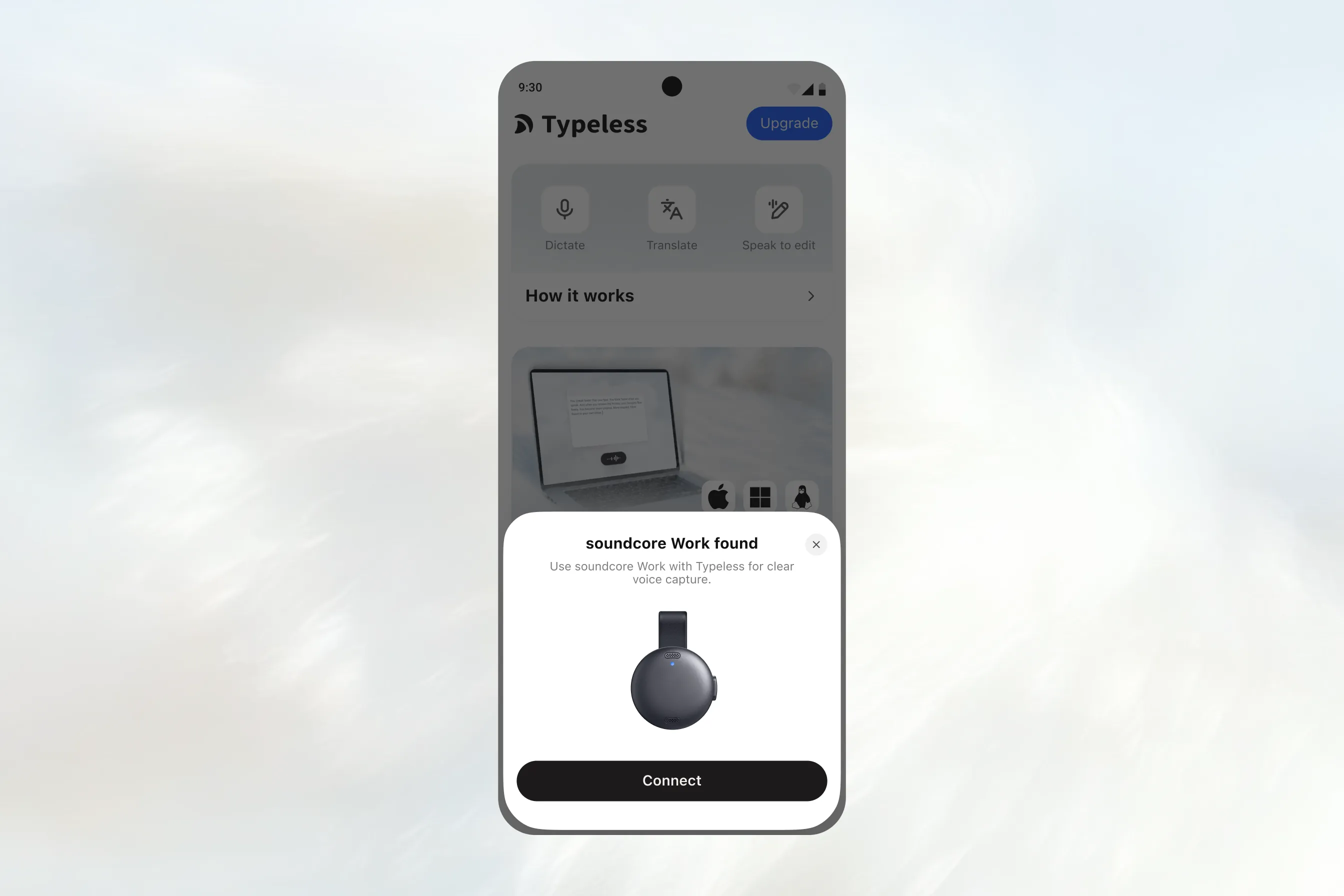
After the system Bluetooth connection is complete, open Typeless on your phone. A "soundcore Work found" pop-up will appear.
Tap Connect on the pop-up to begin.
Allow Nearby devices access
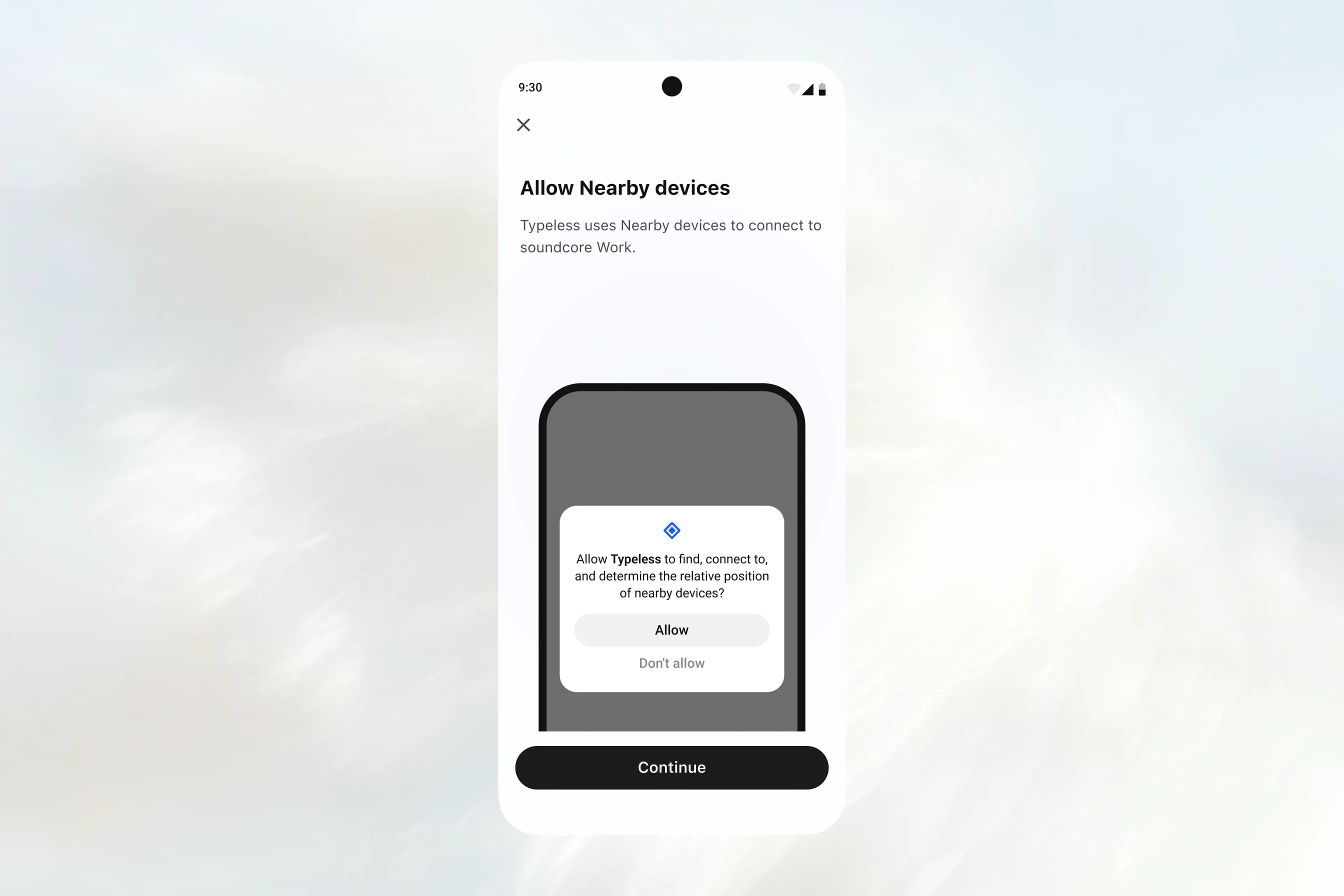
- On the "Allow Nearby devices" screen, tap Continue.
- When the system permission dialog appears, tap Allow to let Typeless find and connect to nearby devices.
Wait for the connection
- After permission is granted, Typeless will connect automatically.
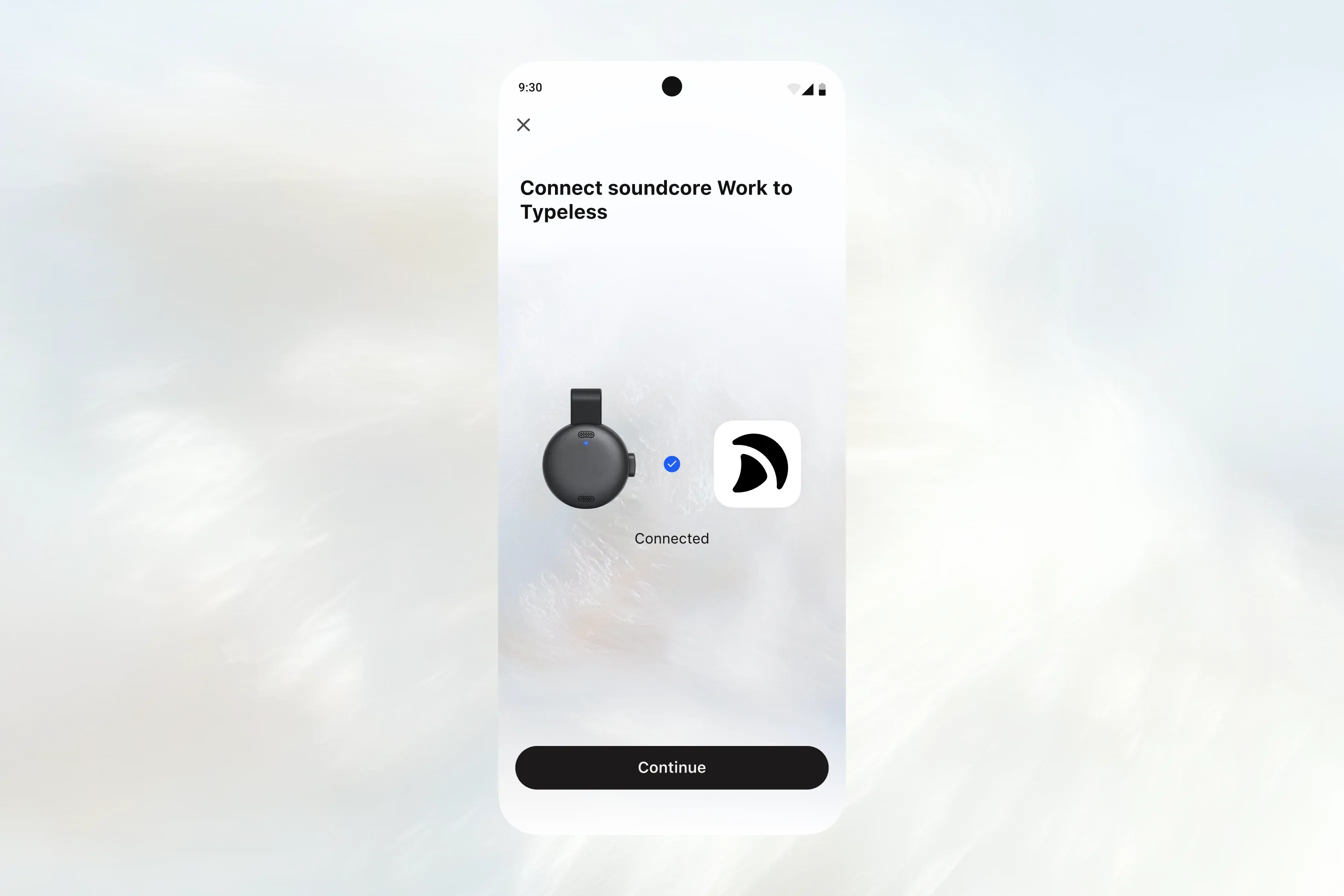
- Wait until the "Connect soundcore Work to Typeless" screen shows Connected.
- Tap Continue.
Test the soundcore Work microphone
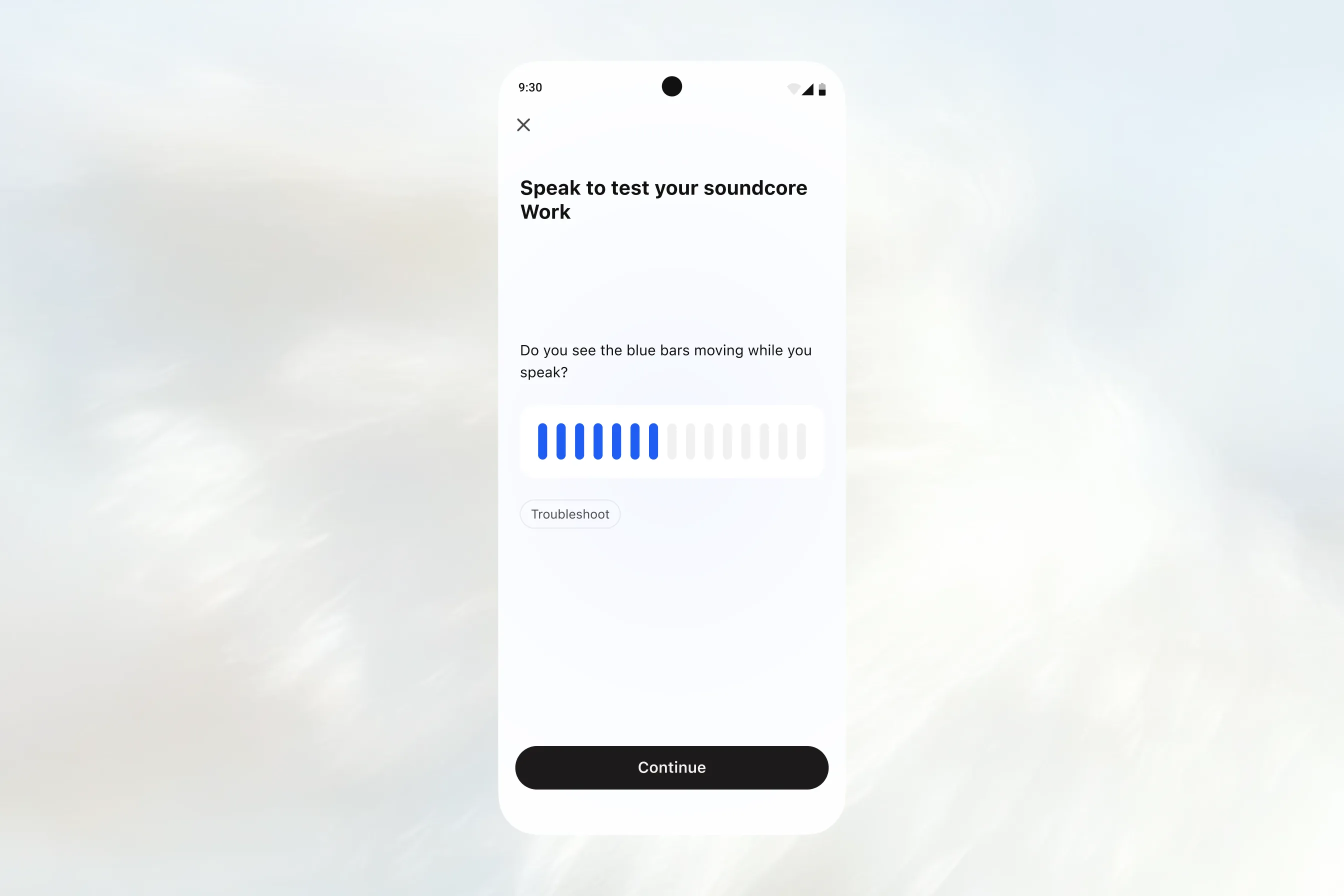
- On the "Speak to test your soundcore Work" screen, speak near the device.
- Watch the blue bars. They should move as you speak.
- Once the microphone detects your voice, Continue becomes available.
- Tap Continue.
Finish connecting
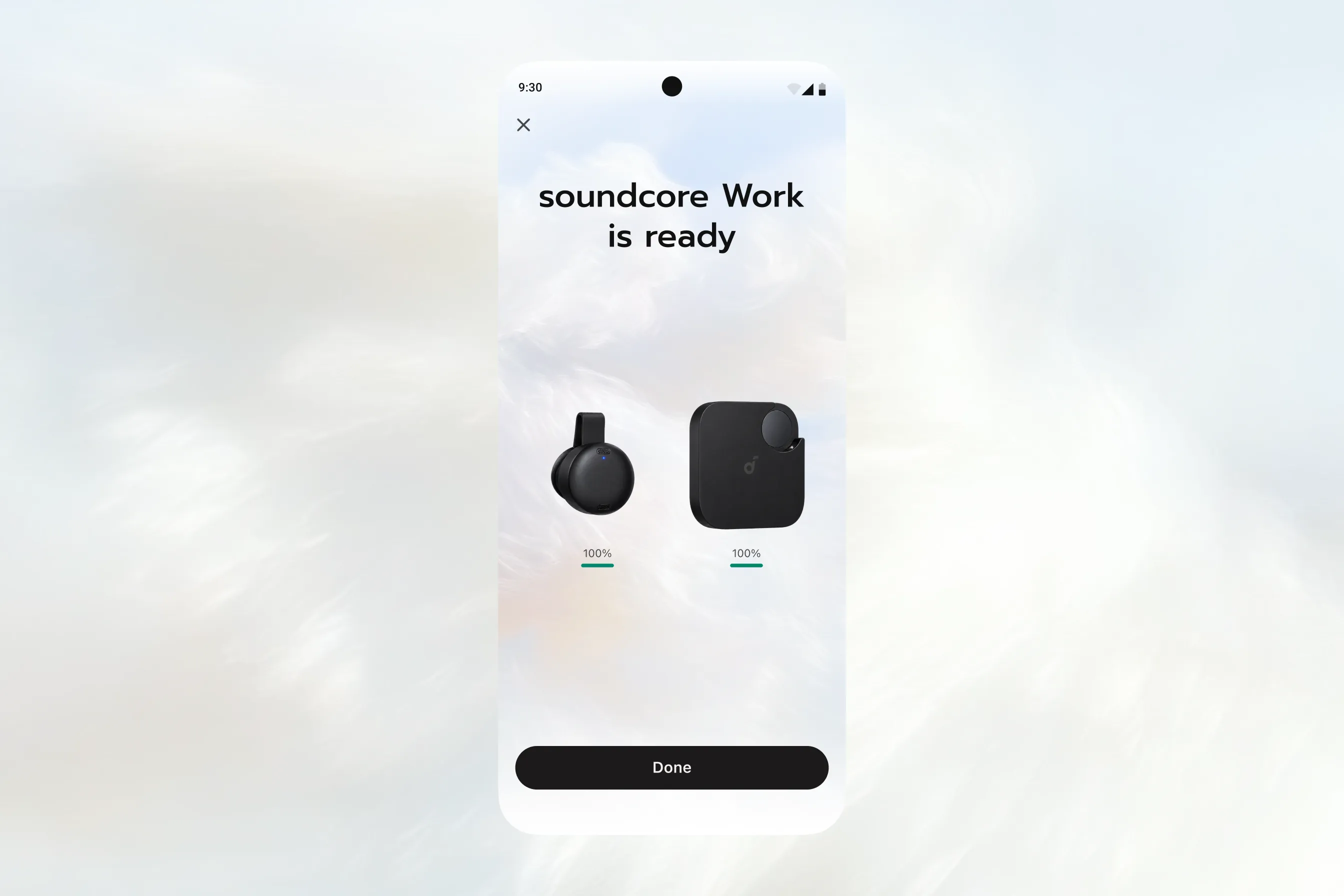
On the "soundcore Work is ready" screen, tap Done to finish setup.
soundcore Work is now ready to use with Typeless.
Step 3: Use Typeless as usual
- Clip soundcore Work to your collar and use it as your microphone.
- Keep using your usual Typeless keyboard controls for Dictate, Translate, Edit, and Write.
Need help?
If you need help connecting or using soundcore Work with Typeless, email [email protected].
Include your phone or computer model, operating system, and a brief description of the issue. If possible, attach a screenshot to help us understand what you're seeing.